> ## Documentation Index
> Fetch the complete documentation index at: https://dripart-train-lora-docs.mintlify.site/llms.txt
> Use this file to discover all available pages before exploring further.
# MacOS Desktop Version
> This article introduces how to download, install and use ComfyUI Desktop for MacOS
export const log_path_0 = "~/Library/Logs/ComfyUI"
export const config_path_0 = "~/Library/Application Support/ComfyUI"
**ComfyUI Desktop** is a standalone installation version that can be installed like regular software.
It supports quick installation and automatic configuration of the **Python environment and dependencies**, and supports one-click import of existing ComfyUI settings, models, workflows, and files.
ComfyUI Desktop is an open source project, please visit the full code [here](https://github.com/Comfy-Org/desktop).
ComfyUI Desktop (MacOS) only supports Apple Silicon
This tutorial will guide you through the software installation process and explain related configuration details.
As **ComfyUI Desktop** is still in **Beta** status, the actual installation process may change
## ComfyUI Desktop (MacOS) Download
Please click the button below to download the installation package for MacOS **ComfyUI Desktop**
Download for MacOS
## ComfyUI Desktop Installation Steps
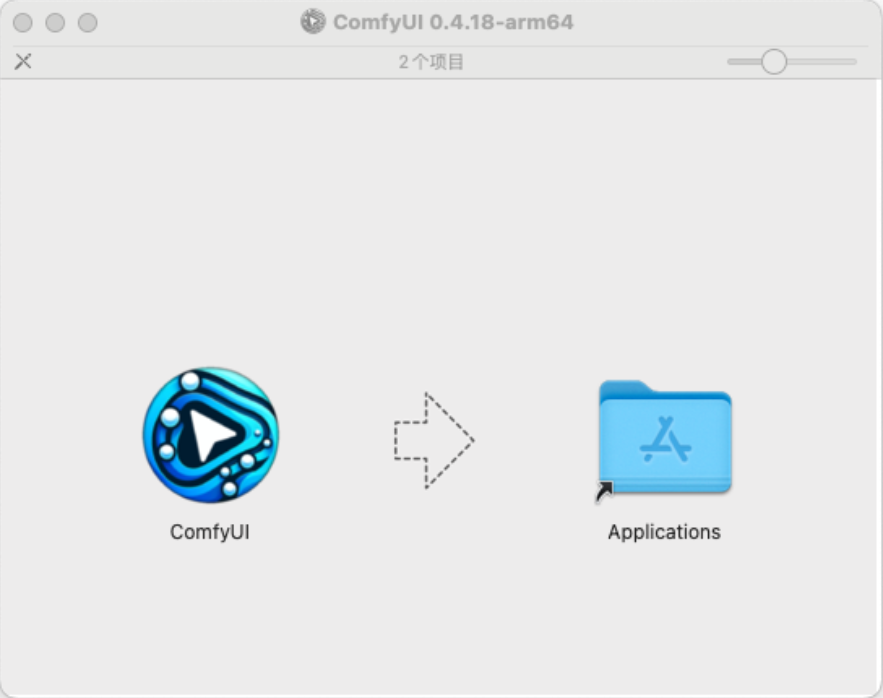
Double-click the downloaded installation package file. As shown in the image, drag the **ComfyUI** application into the **Applications** folder following the arrow
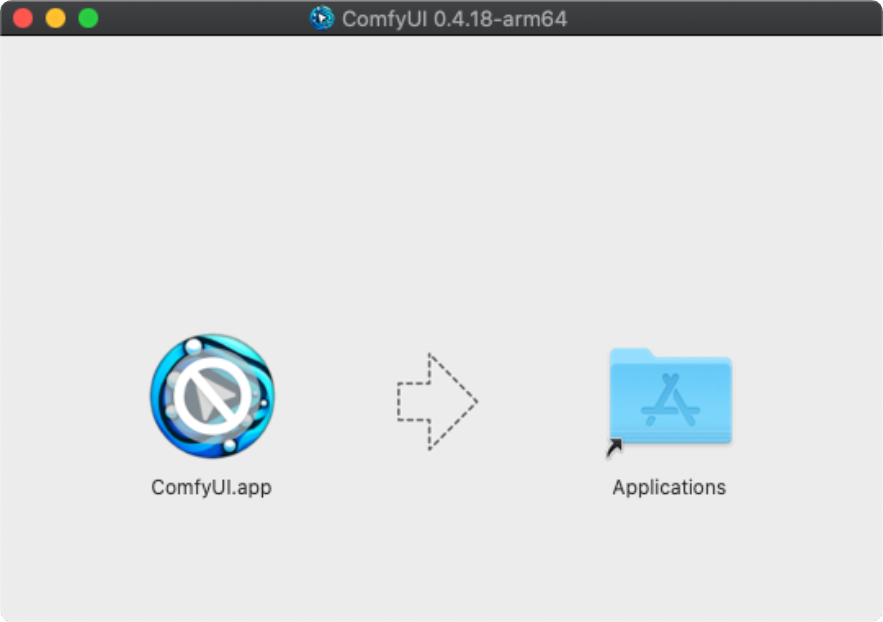
If your folder shows as below with a prohibition sign on the icon after opening the installation package, it means your current system version is not compatible with **ComfyUI Desktop**
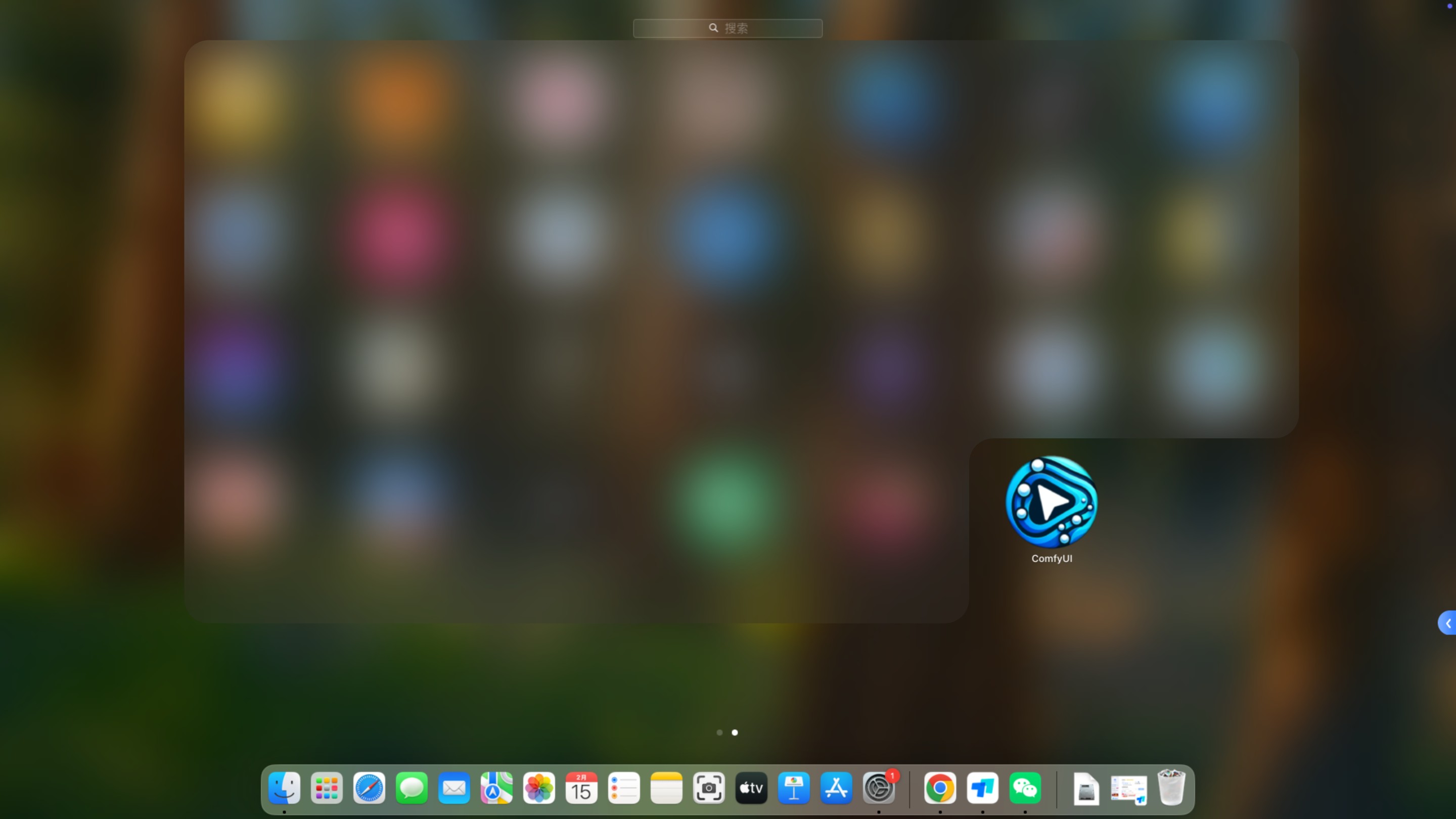
Then find the **ComfyUI icon** in **Launchpad** and click it to enter ComfyUI initialization settings
## ComfyUI Desktop Initialization Process
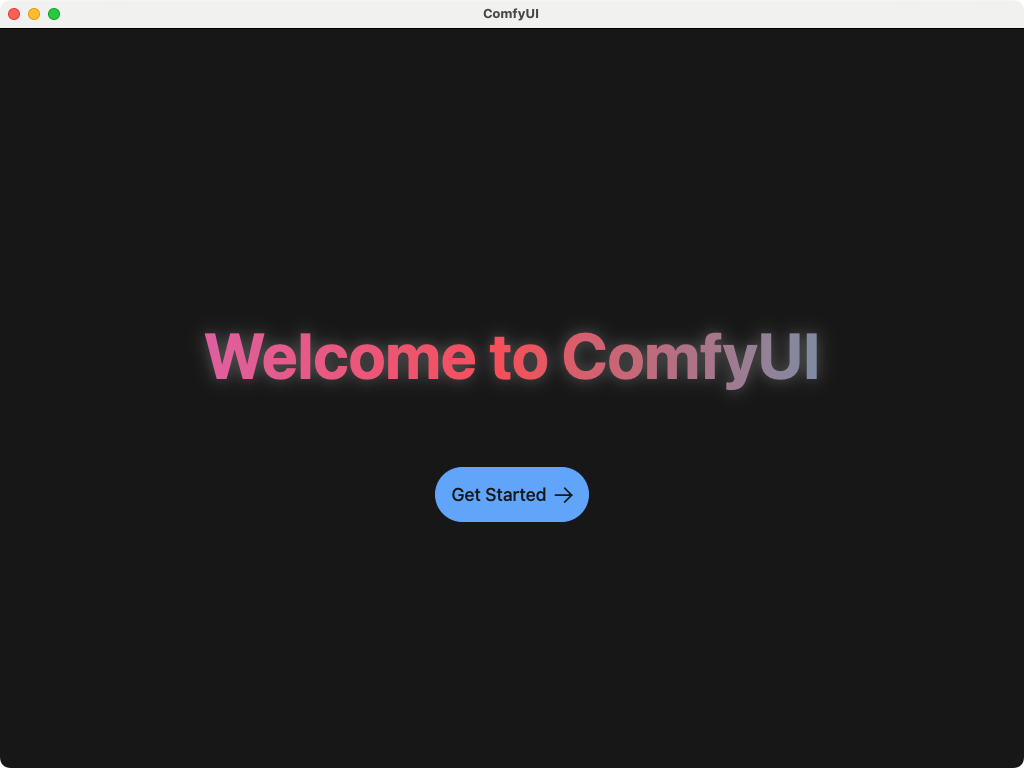
Click **Get Started** to begin initialization
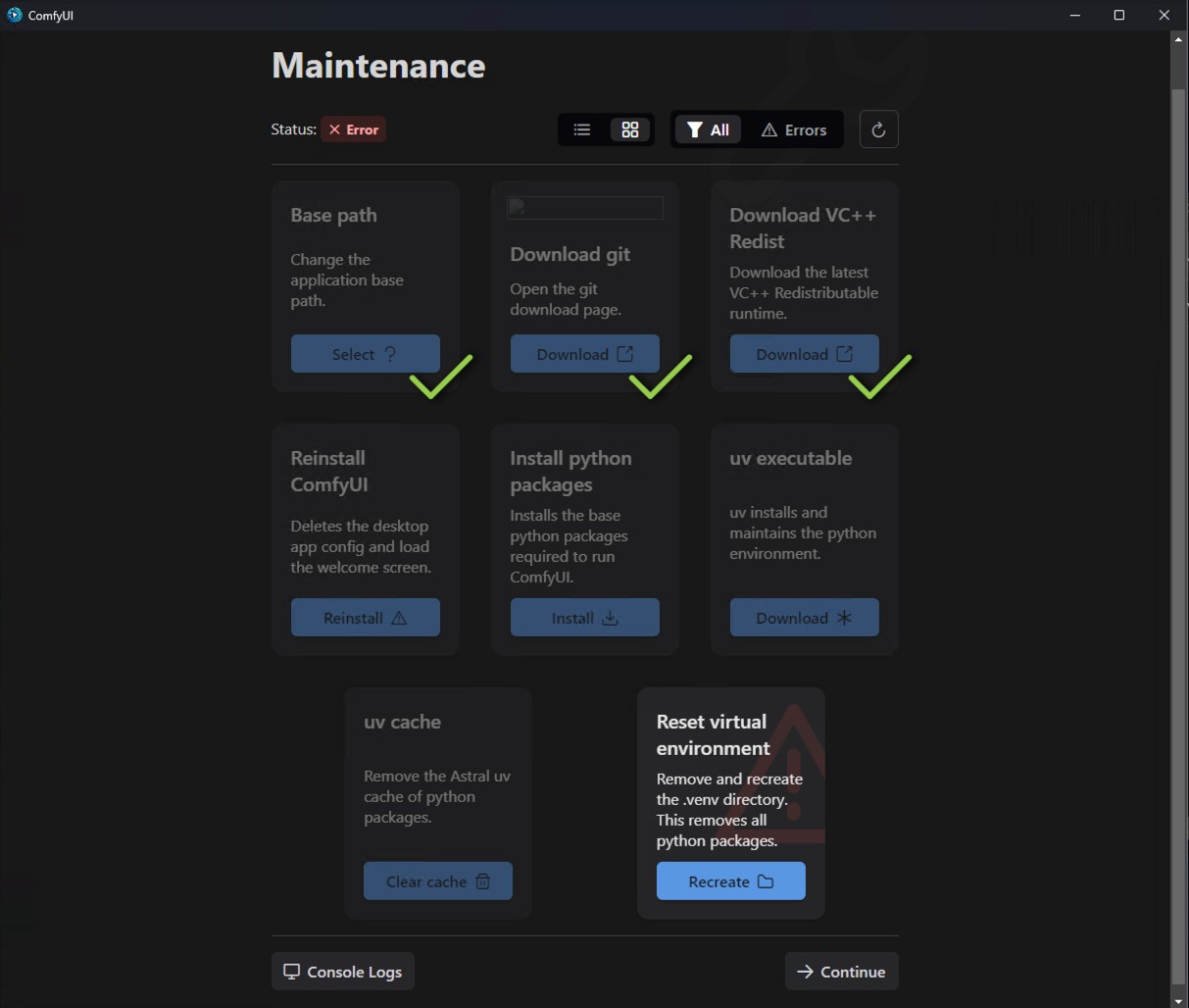
There are many reasons you might have issues installing ComfyUI. Maybe a network connection failed when installing pytorch (15 GB). Or you don’t have git installed. The maintenance page automatically opens when it detects an issue and provides a way to resolve the issue.
You can use it to resolve most issues:
* Create a python virtual environment
* Reinstall all missing core dependencies to your Python virtual environment that’s managed by Desktop
* Install git, VC redis
* Choose a new install location
The default maintenance page displays the current error content
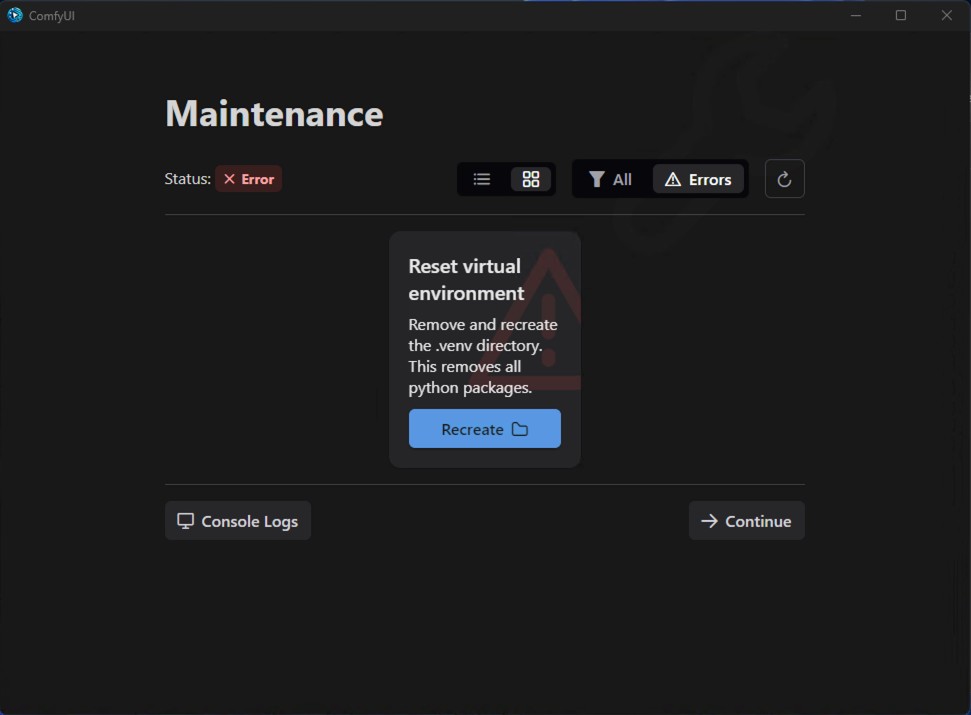
Clicking `All` allows you to view all the content that can be operated on currently
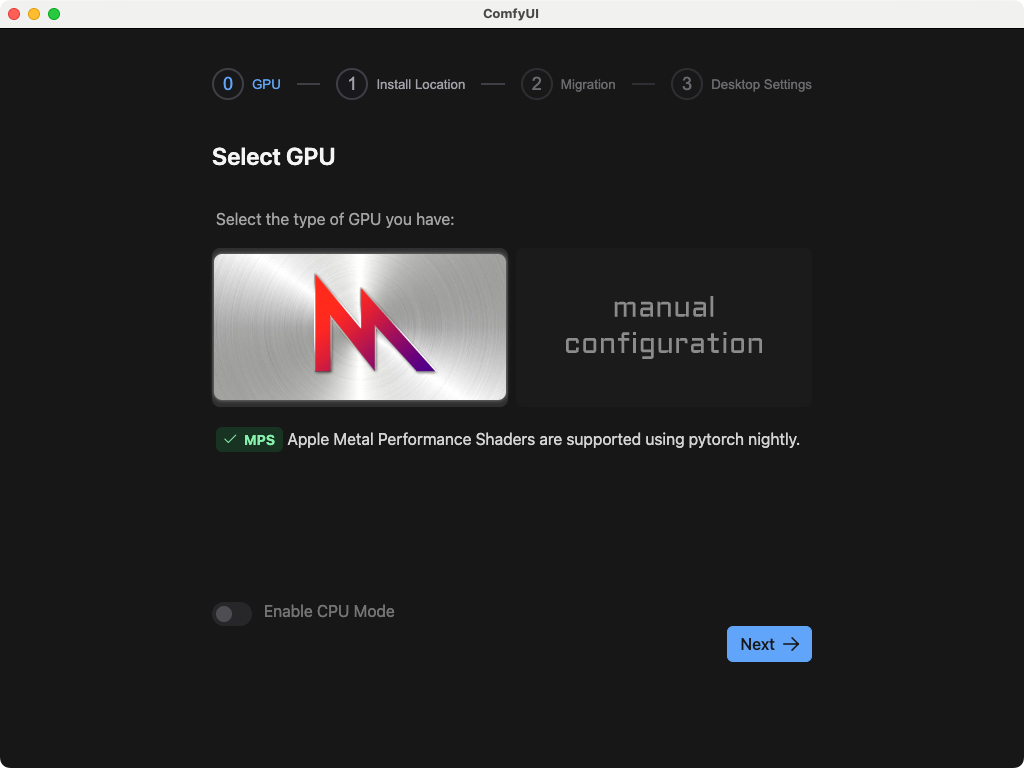
The three options are:
1. **MPS (Recommended):** Metal Performance Shaders (MPS) is an Apple framework that uses GPUs to accelerate computing and machine learning tasks on Apple devices, supporting frameworks like PyTorch.
2. **Manual Configuration:** You need to manually install and configure the python runtime environment. Don't select this unless you know how to configure
3. **Enable CPU Mode:** For developers and special cases only. Don't select this unless you're sure you need it
Unless there are special circumstances, please select **MPS** as shown and click **Next** to proceed
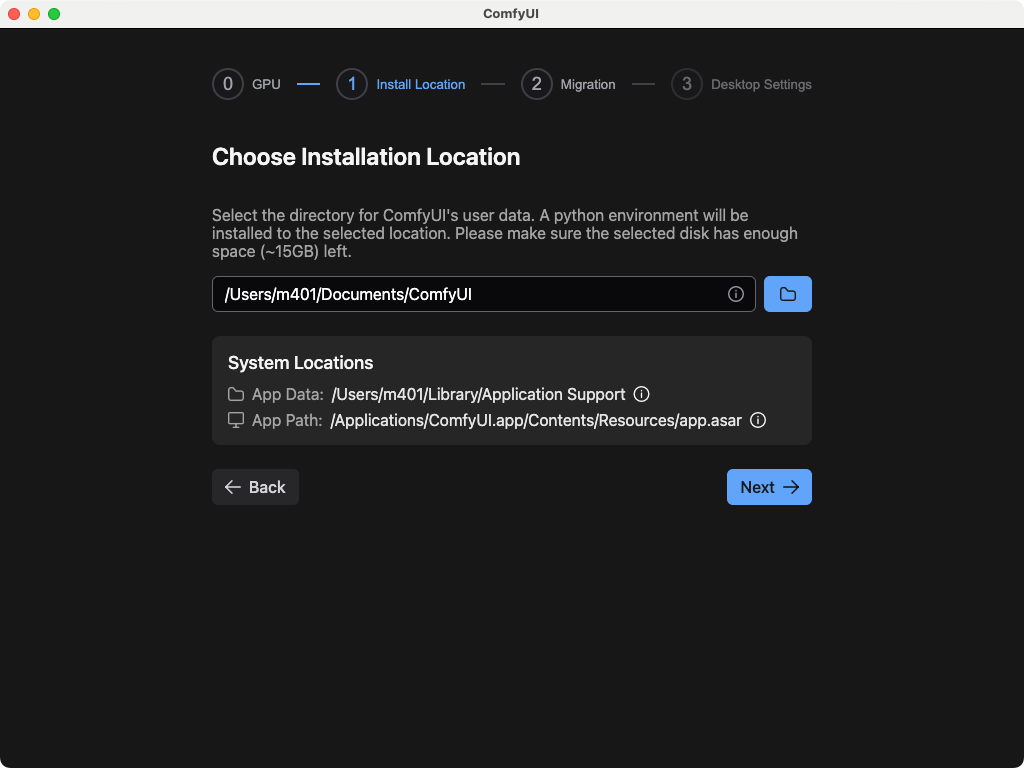
In this step, you will select the installation location for the following related content of ComfyUI:
* **Python Environment**
* **Models Model Files**
* **Custom Nodes Custom Nodes**
Recommendations:
* Please create a separate empty folder as the installation directory for ComfyUI
* Please ensure that the disk has at least **5G** of disk space to ensure the normal installation of **ComfyUI Desktop**
Not all files are installed in this directory, some files will be located in the MacOS system directory, you can refer to the uninstallation section of this guide to complete the uninstallation of the ComfyUI desktop version
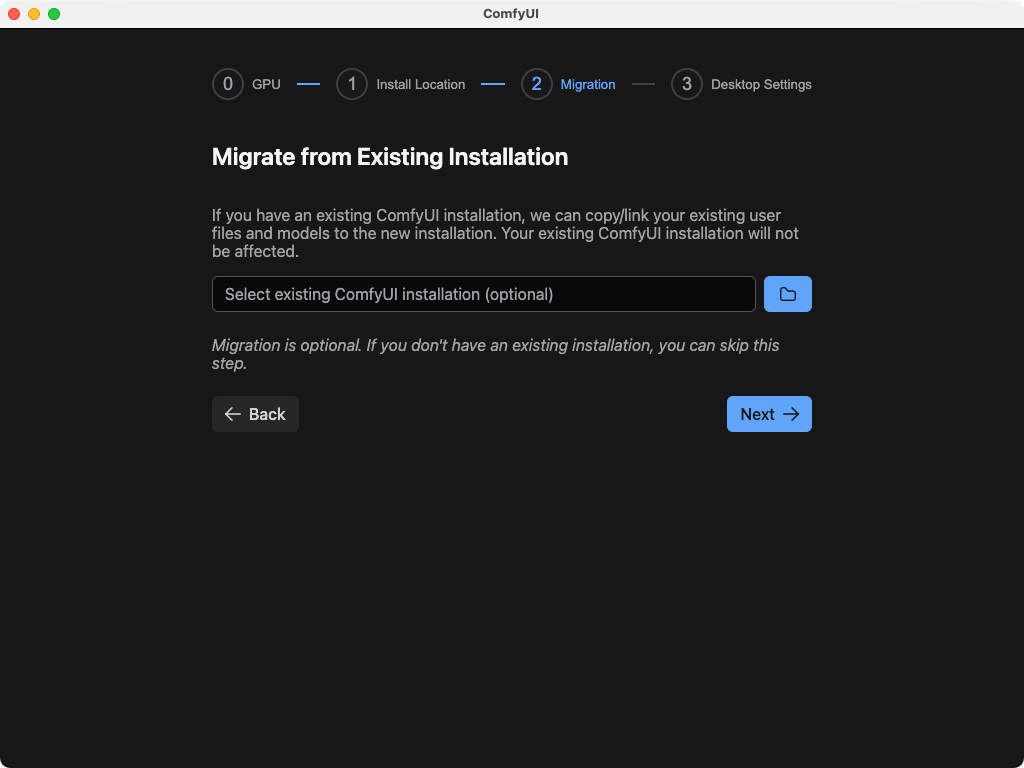
In this step you can migrate your existing ComfyUI installation content to ComfyUI Desktop. Select your existing ComfyUI installation directory, and the installer will automatically recognize:
* **User Files**
* **Models:** Will not be copied, only linked with desktop version
* **Custom Nodes:** Nodes will be reinstalled
Don't worry, this step won't copy model files. You can check or uncheck options as needed. Click **Next** to continue
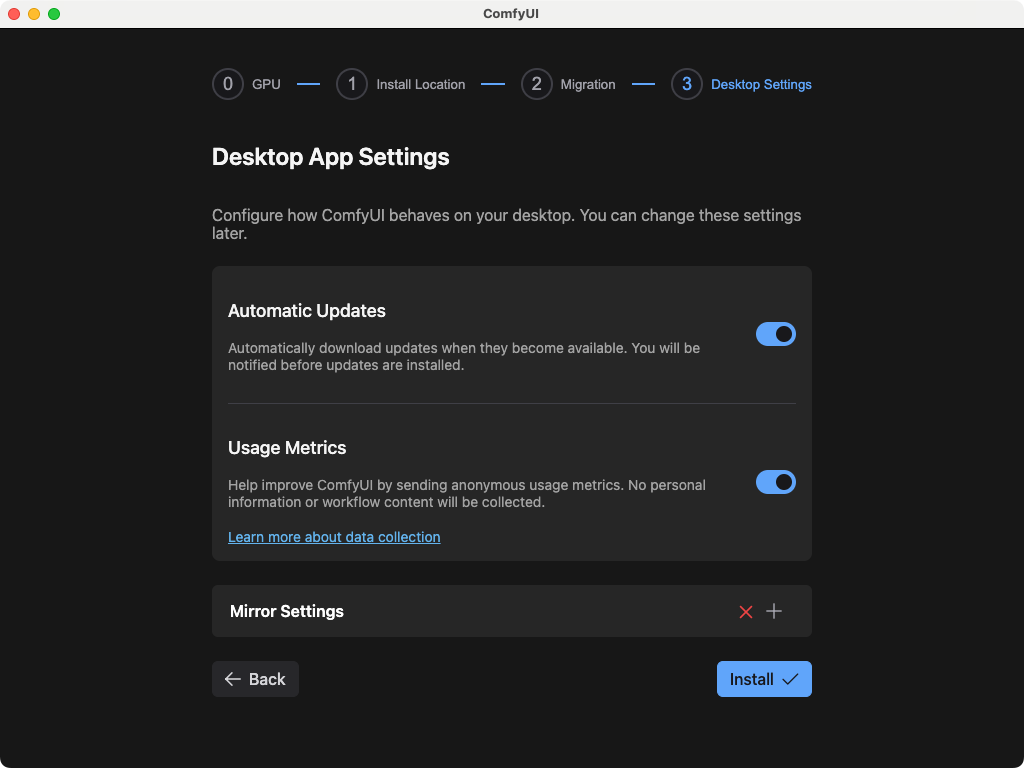
These are preference settings:
1. **Automatic Updates:** Whether to set automatic updates when ComfyUI updates are available
2. **Usage Metrics:** If enabled, we will collect **anonymous usage data** to help improve ComfyUI
3. **Mirror Settings:** Since the program needs internet access to download Python and complete environment installation, if you see a red ❌ during installation indicating this may cause installation failure, please follow the steps below
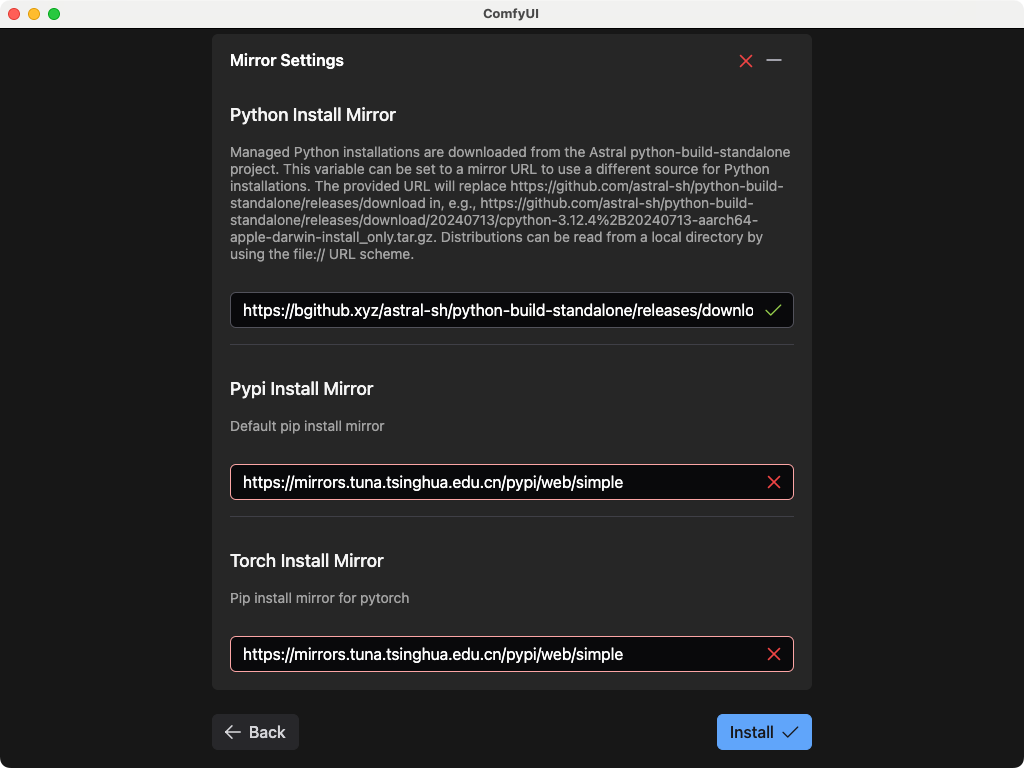
Expand the mirror settings to find the specific failing mirror. In this screenshot the error is **Python Install Mirror** failure.
For different mirror errors, you can refer to the following content to try to manually find different mirrors and replace them
The following cases mainly apply to users in China.
#### Python Installation Mirror
If the default mirror is unavailable, please try using the mirror below.
```
https://python-standalone.org/mirror/astral-sh/python-build-standalone
```
If you need to find other alternative GitHub mirror addresses, please look for and construct a mirror address pointing to the releases of the `python-build-standalone` repository.
```
https://github.com/astral-sh/python-build-standalone/releases/download
```
Build a link in the following pattern
```
https://xxx/astral-sh/python-build-standalone/releases/download
```
Since most of the Github mirror services are provided by third parties, please pay attention to the security during use.
#### PyPI Mirror
* Alibaba Cloud: [https://mirrors.aliyun.com/pypi/simple/](https://mirrors.aliyun.com/pypi/simple/)
* Tencent Cloud: [https://mirrors.cloud.tencent.com/pypi/simple/](https://mirrors.cloud.tencent.com/pypi/simple/)
* University of Science and Technology of China: [https://pypi.mirrors.ustc.edu.cn/simple/](https://pypi.mirrors.ustc.edu.cn/simple/)
* Shanghai Jiao Tong University: [https://pypi.sjtu.edu.cn/simple/](https://pypi.sjtu.edu.cn/simple/)
#### Torch Mirror
* Aliyun: [https://mirrors.aliyun.com/pytorch-wheels/cu121/](https://mirrors.aliyun.com/pytorch-wheels/cu121/)
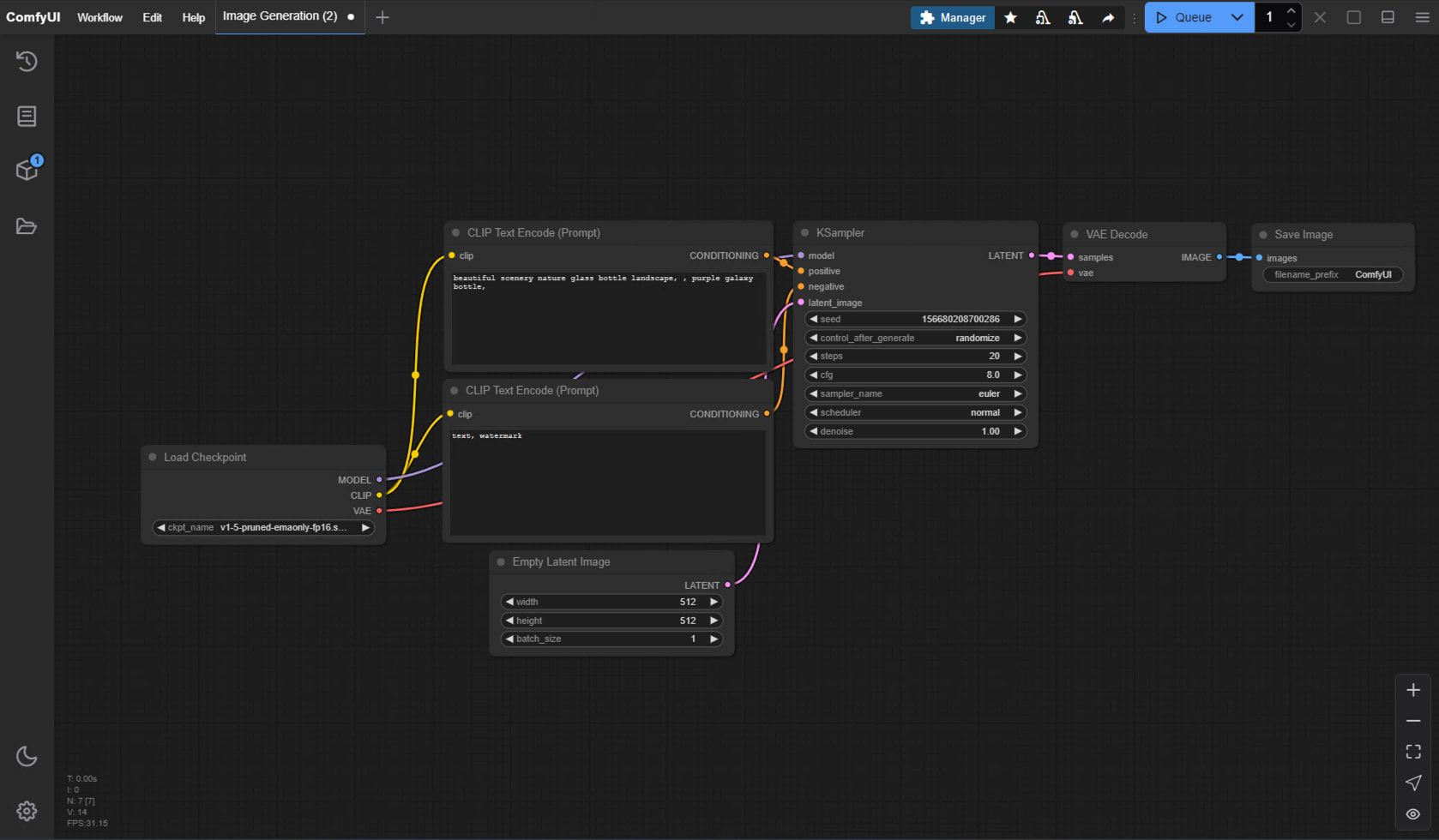
If everything is correct, the installer will complete and automatically enter the ComfyUI Desktop interface, then the installation is successful
## First Image Generation
After successful installation, you can refer to the section below to start your ComfyUI journey\~
This tutorial will guide you through your first model installation and text-to-image generation
## How to Update ComfyUI Desktop
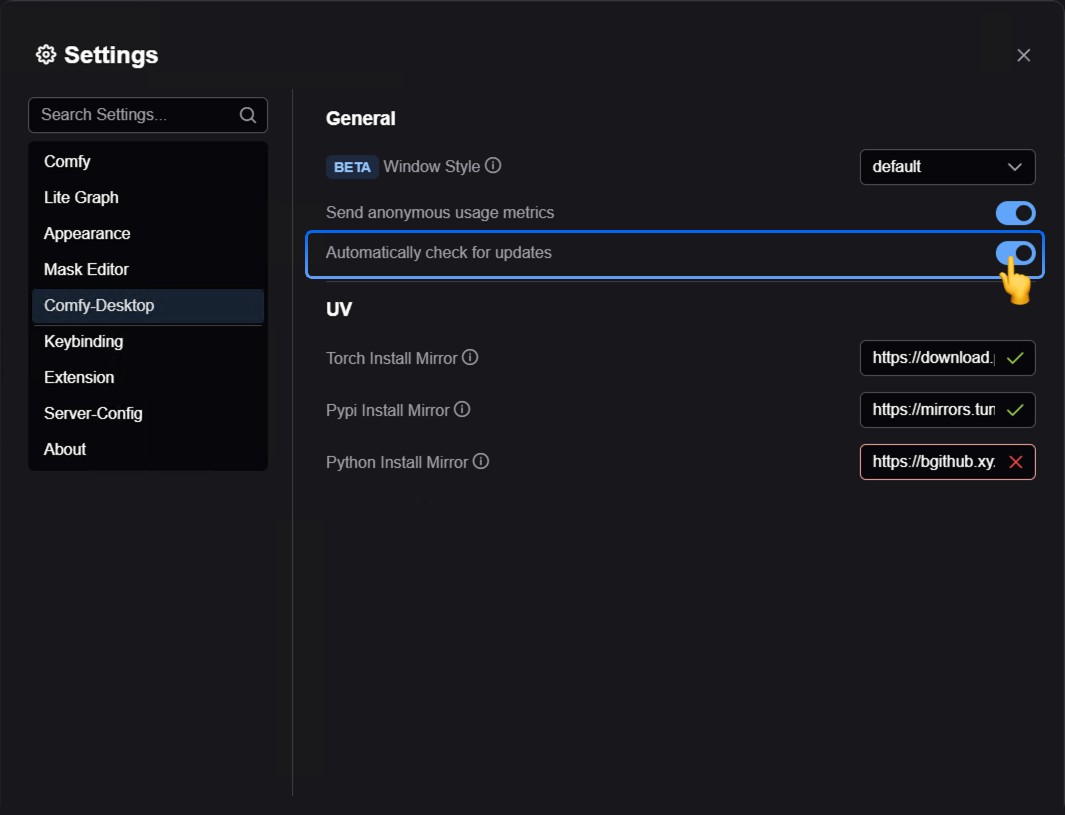
Currently, ComfyUI Desktop updates use automatic detection updates, please ensure that automatic updates are enabled in the settings
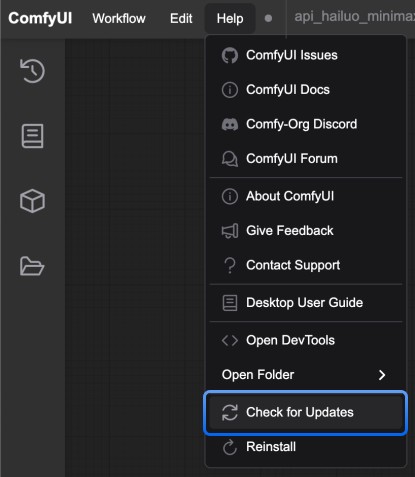
You can also choose to manually check for available updates in the `Menu` --> `Help` --> `Check for Updates`
## Adding External Model Paths
If you have models stored in other locations on your computer outside the ComfyUI installation directory, you can add them to ComfyUI by configuring the `extra_models_config.yaml` file.
For ComfyUI Desktop, this file is located at:
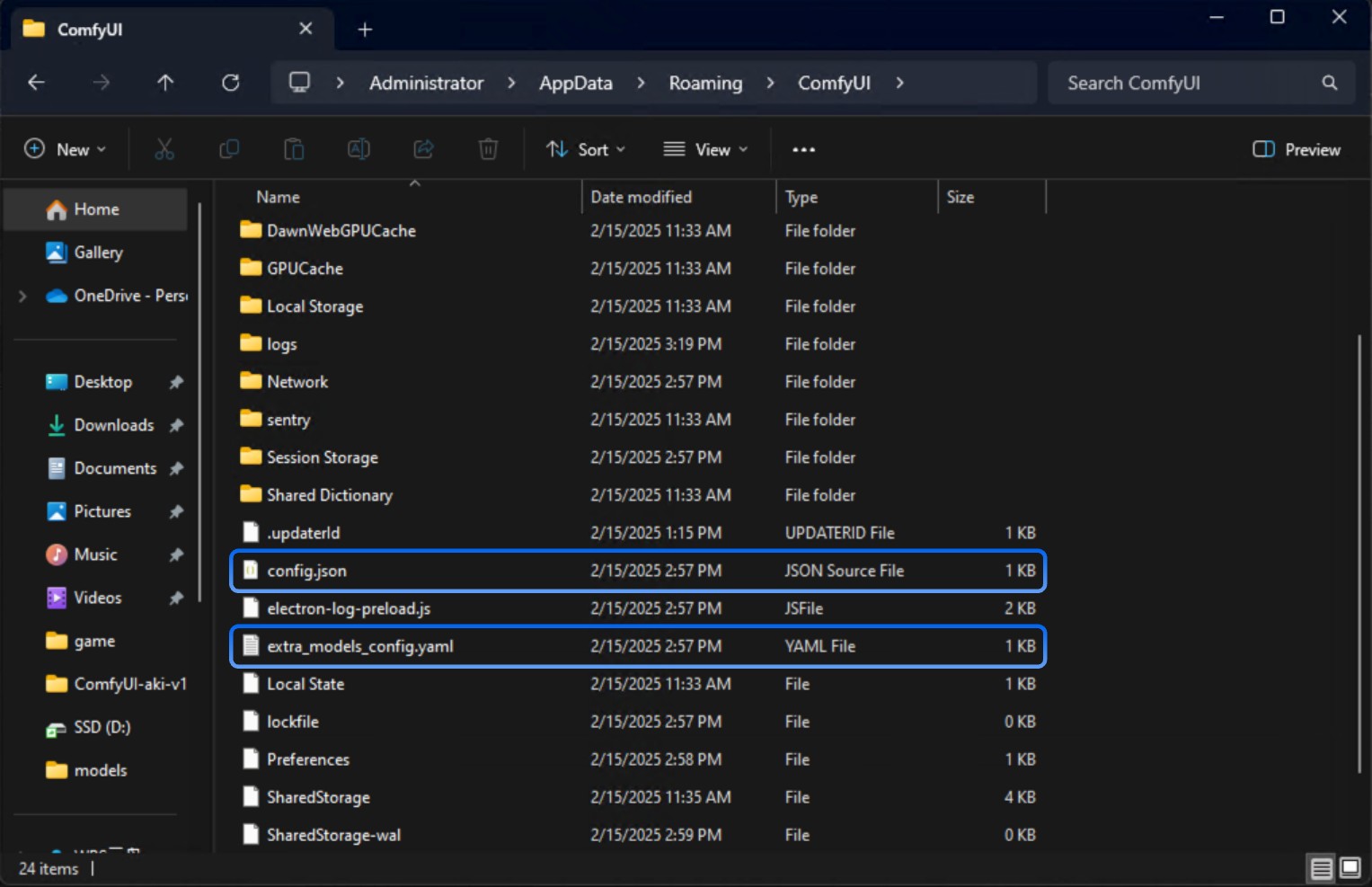
* On Windows: `C:\Users\\AppData\Roaming\ComfyUI\extra_models_config.yaml`
* On macOS: `~/Library/Application Support/ComfyUI/extra_models_config.yaml`
* On Linux: `~/.config/ComfyUI/extra_models_config.yaml`
For detailed instructions, see [Models documentation](/development/core-concepts/models#adding-external-model-paths)
## How to Uninstall ComfyUI Desktop
For **ComfyUI Desktop**, you can directly delete **ComfyUI** from the **Applications** folder
If you want to completely remove all **ComfyUI Desktop** files, you can manually delete these folders:
* /Users/Library/Application Support/ComfyUI
The above operations will not delete your following folders. If you need to delete corresponding files, please delete manually:
* models files
* custom nodes
* input/output directories
## Troubleshooting
### Error identification
If installation fails, you should see the following screen
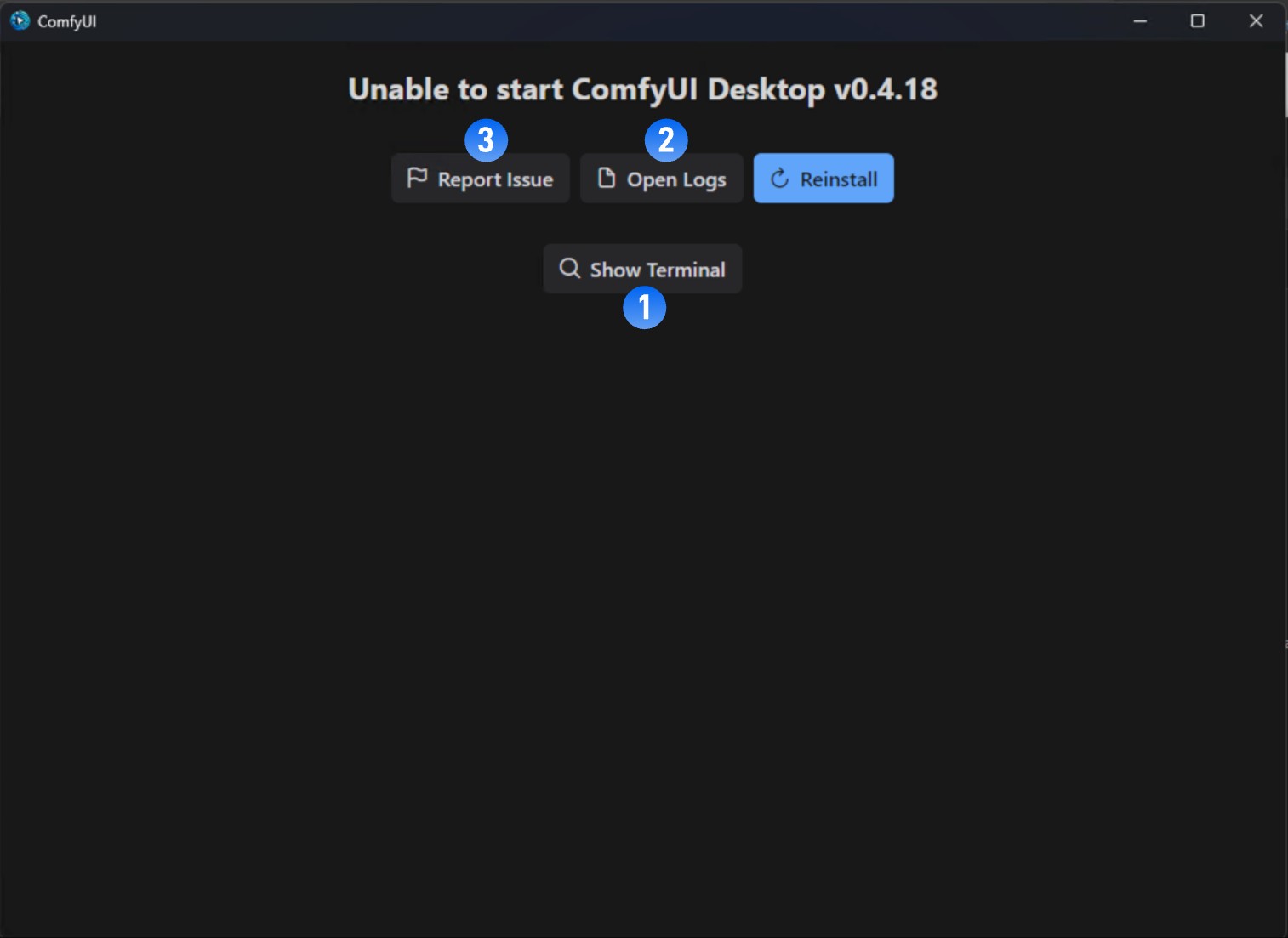
It is recommended to take these steps to find the error cause:
1. Click `Show Terminal` to view error output
2. Click `Open Logs` to view installation logs
3. Visit official forum to search for error reports
4. Click `Reinstall` to try reinstalling
Before submitting feedback, it's recommended to provide the **error output** and **log files** to tools like **GPT**
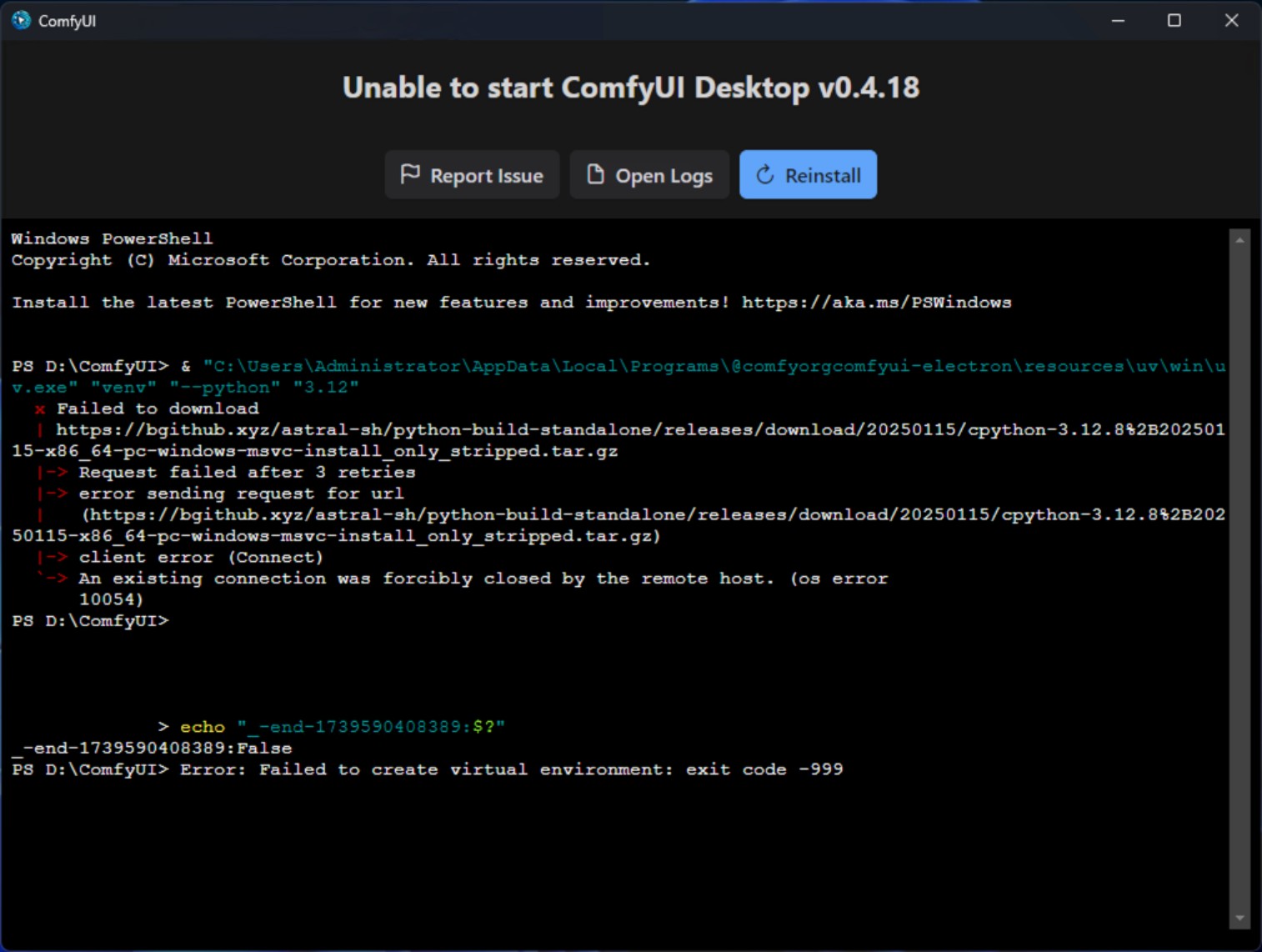
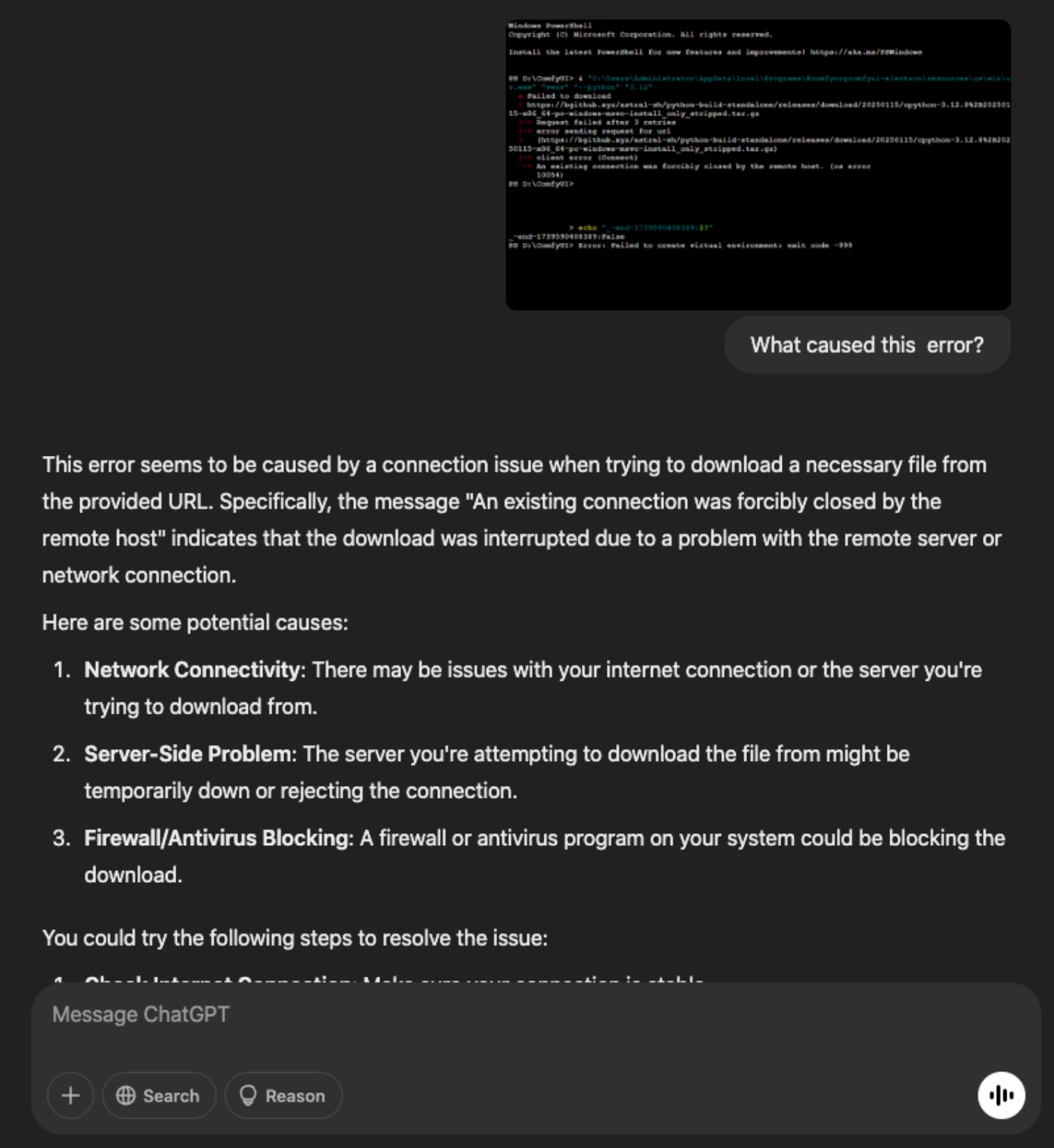
As shown above, ask the GPT for the cause of the corresponding error, or remove ComfyUI completely and retry the installation.
### Feedback Installation Failure
If you encounter any errors during installation, please check if there are similar error reports or submit errors to us through:
* Github Issues: [https://github.com/Comfy-Org/desktop/issues](https://github.com/Comfy-Org/desktop/issues)
* Comfy Official Forum: [https://forum.comfy.org/](https://forum.comfy.org/)
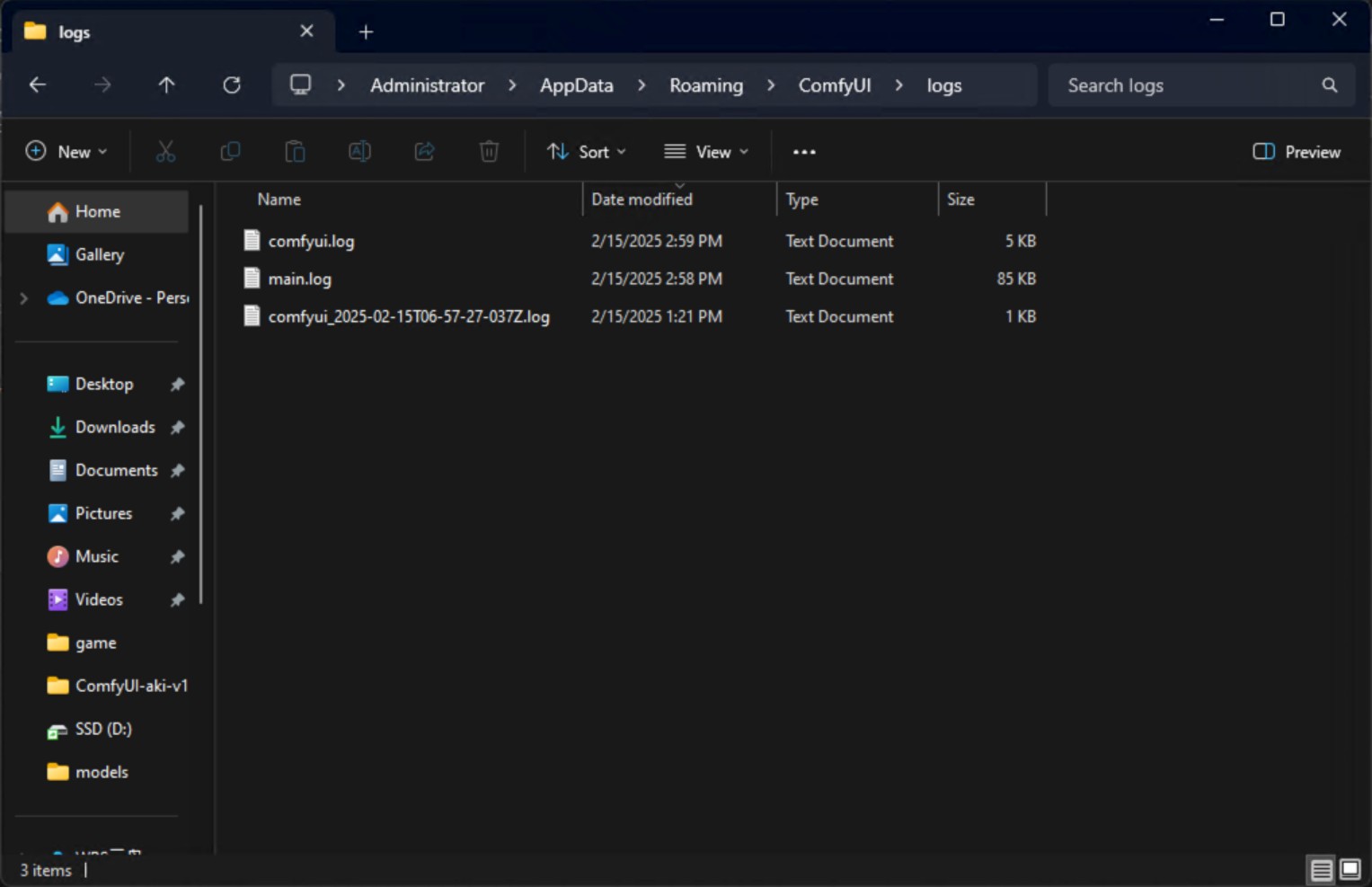
When submitting error reports, please ensure you include the following logs and configuration files to help us locate and investigate the issue:
1. Log Files
| Filename | Description | Location |
| ----------- | ----------------------------------------------------------------------------------------------- | ------------ |
| main.log | Contains logs related to desktop application and server startup from the Electron process | {log_path_0} |
| comfyui.log | Contains logs related to ComfyUI normal operation, such as core ComfyUI process terminal output | {log_path_0} |
2. Configuration Files
| Filename | Description | Location |
| ------------------------ | ------------------------------------------------------------------------------- | --------------- |
| extra\_model\_paths.yaml | Contains additional paths where ComfyUI will search for models and custom nodes | {config_path_0} |
| config.json | Contains application configuration. This file should not be edited directly | {config_path_0} |