> ## Documentation Index
> Fetch the complete documentation index at: https://dripart-train-lora-docs.mintlify.site/llms.txt
> Use this file to discover all available pages before exploring further.
# How to Install Custom Nodes in ComfyUI
> This guide will show you different methods to install custom nodes in ComfyUI
## What are Custom Nodes ?
Custom nodes are extensions for ComfyUI that add new functionality like advanced image processing, machine learning fine-tuning, color adjustments, and more. These community-developed nodes can significantly expand ComfyUI's core capabilities.
Before installing custom nodes, it's important to review them carefully. Since ComfyUI is an open-source project, malicious plugins could potentially exploit custom nodes:
1. Only install custom nodes from trusted authors and those commonly used by the community
2. Understand the plugin's functionality before installing and avoid unknown sources to ensure system security
3. Avoid installing obscure or suspicious plugins - unverified plugins may pose security risks that could lead to system compromise
All custom node installations require completing these two steps:
1. Clone the node code to the `ComfyUI/custom_nodes` directory
2. Install the required Python dependencies
This guide covers three installation methods. Here's a comparison of their pros and cons. While [ComfyUI Manager](https://github.com/Comfy-Org/ComfyUI-Manager) isn't yet part of the core dependencies, it will be in the future. We still provide other installation guides to meet different needs.
| Method | Advantages | Disadvantages |
| --------------------------------- | --------------------------------------------------------------------------- | --------------------------------------------------------------------------------------- |
| **ComfyUI Manager** (Recommended) | 1. Automated installation
2. Dependency handling
3. GUI interface | Cannot directly search for nodes not registered in the registry |
| **Git Clone** | Can install nodes not registered in the registry | 1. Requires Git knowledge
2. Manual dependency handling
3. Installation risks |
| **Repository ZIP Download** | 1. No Git required
2. Manual control | 1. Manual dependency handling
2. No version control
3. Installation risks |
Tip: Before installing custom nodes, check the plugin's README file to understand installation methods, usage, and requirements like specific models, dependency versions, and common issue solutions.
## Method 1: ComfyUI Manager (Recommended)
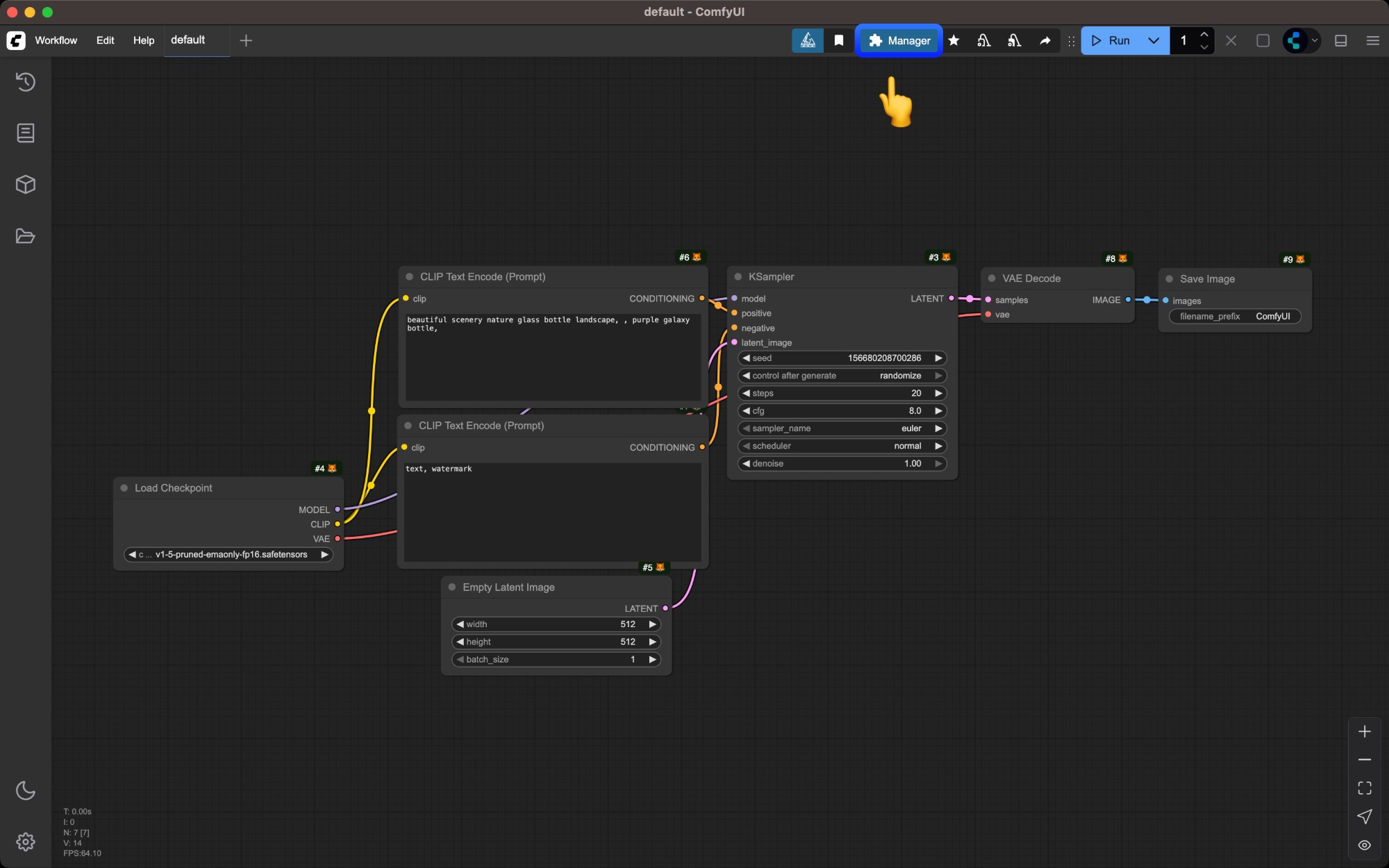
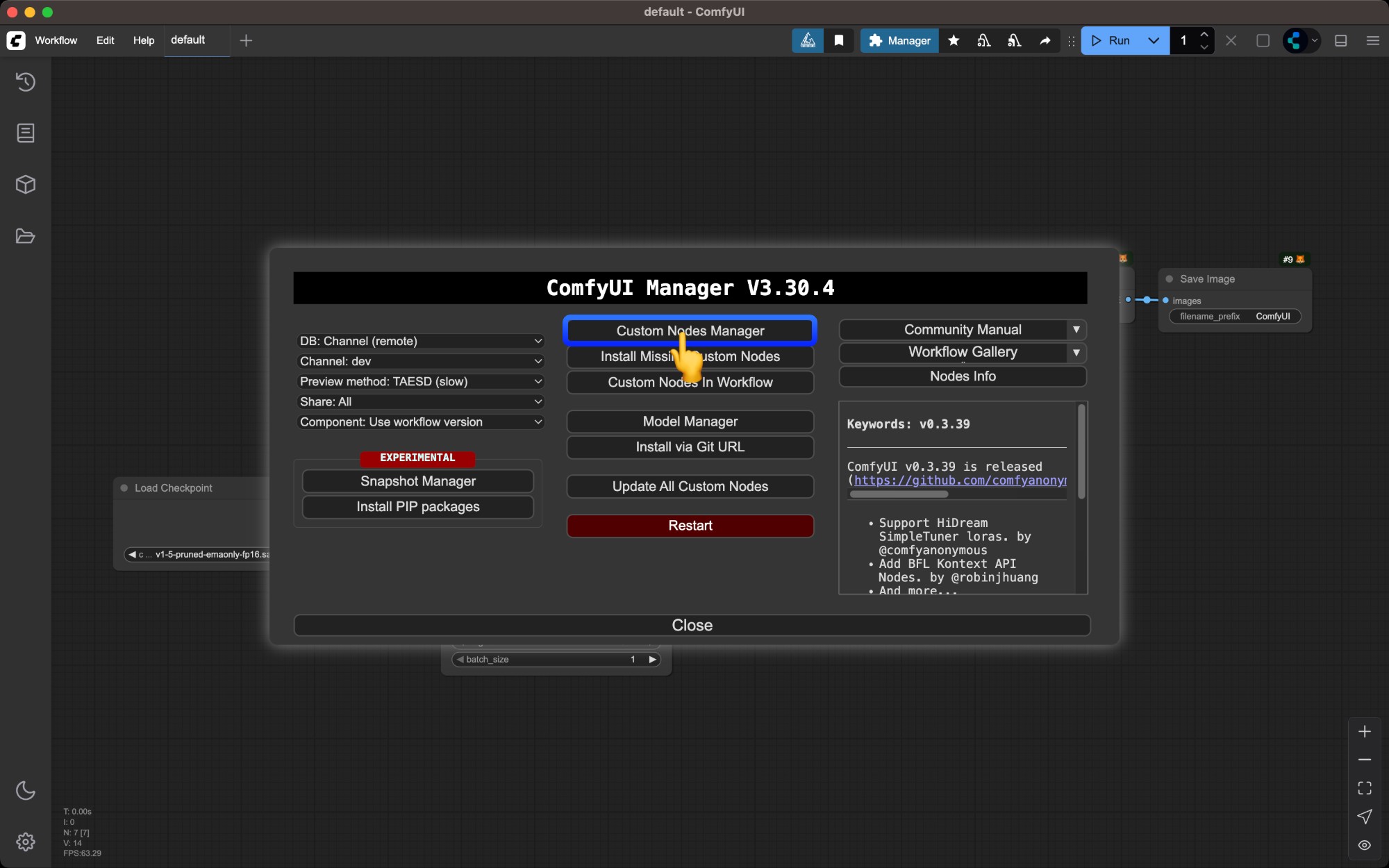
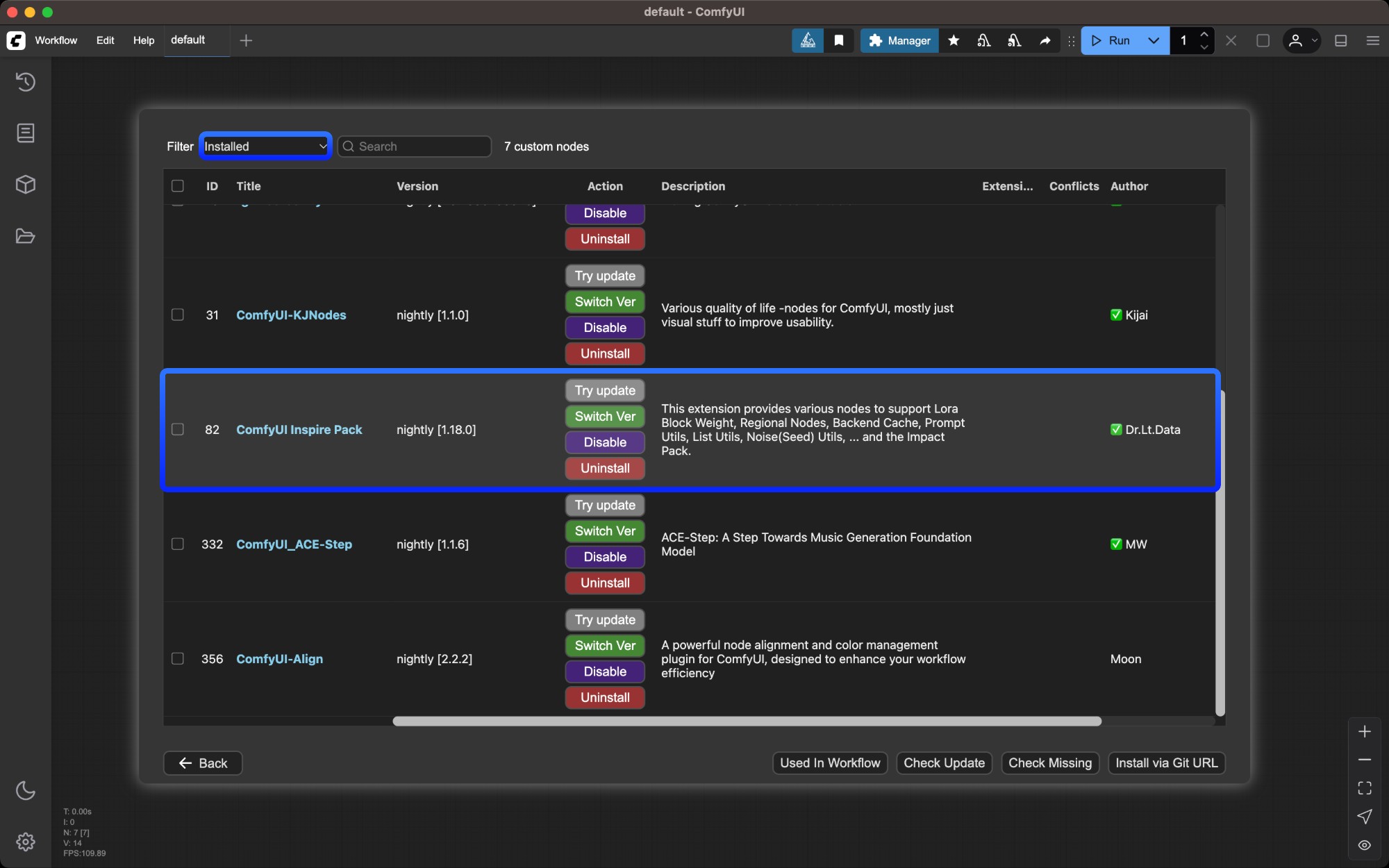
Custom nodes listed in ComfyUI Manager aren't necessarily safe. Understand their functionality before installing and ensure you only install trusted plugins and those from popular authors to avoid potential device risks.
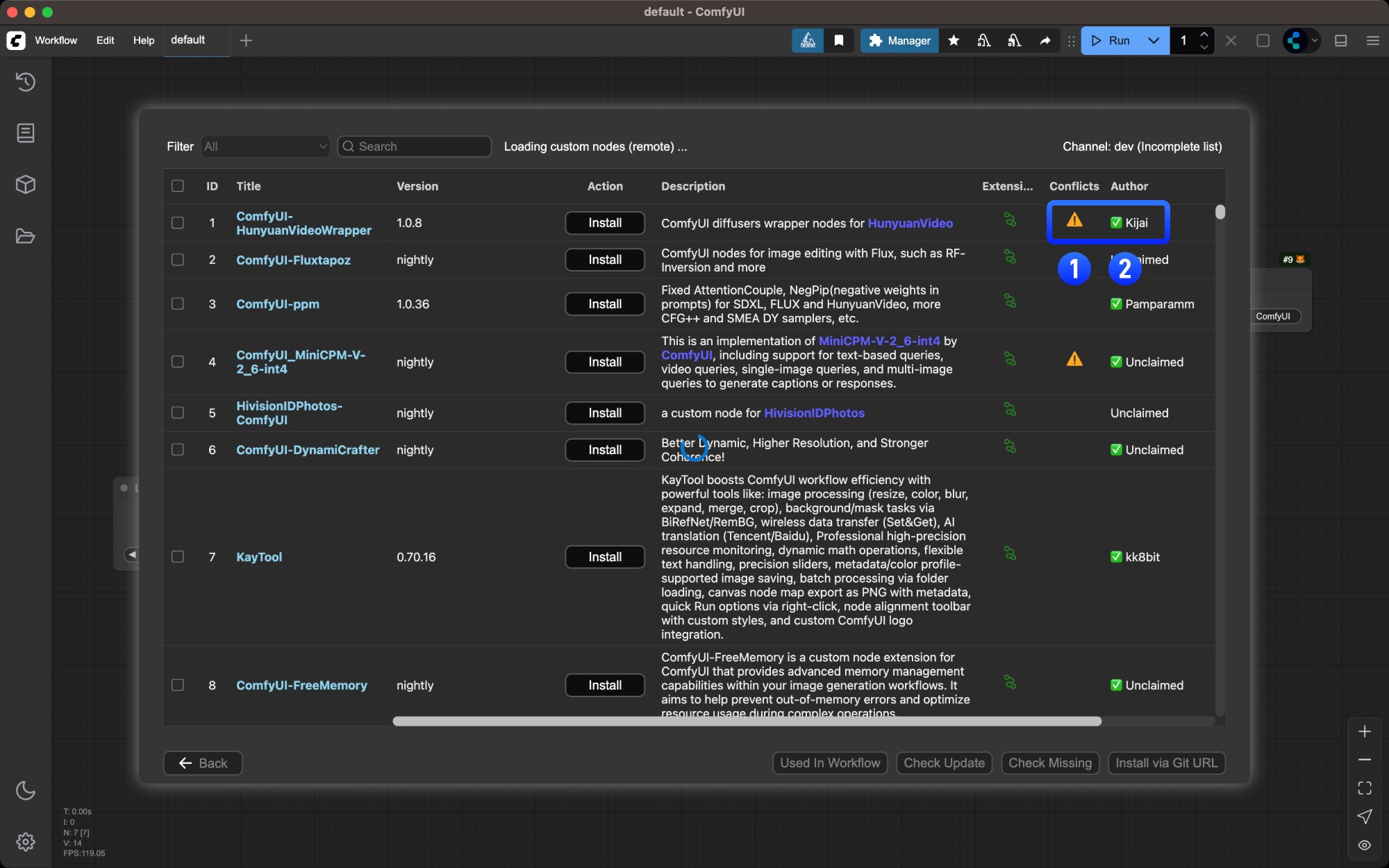
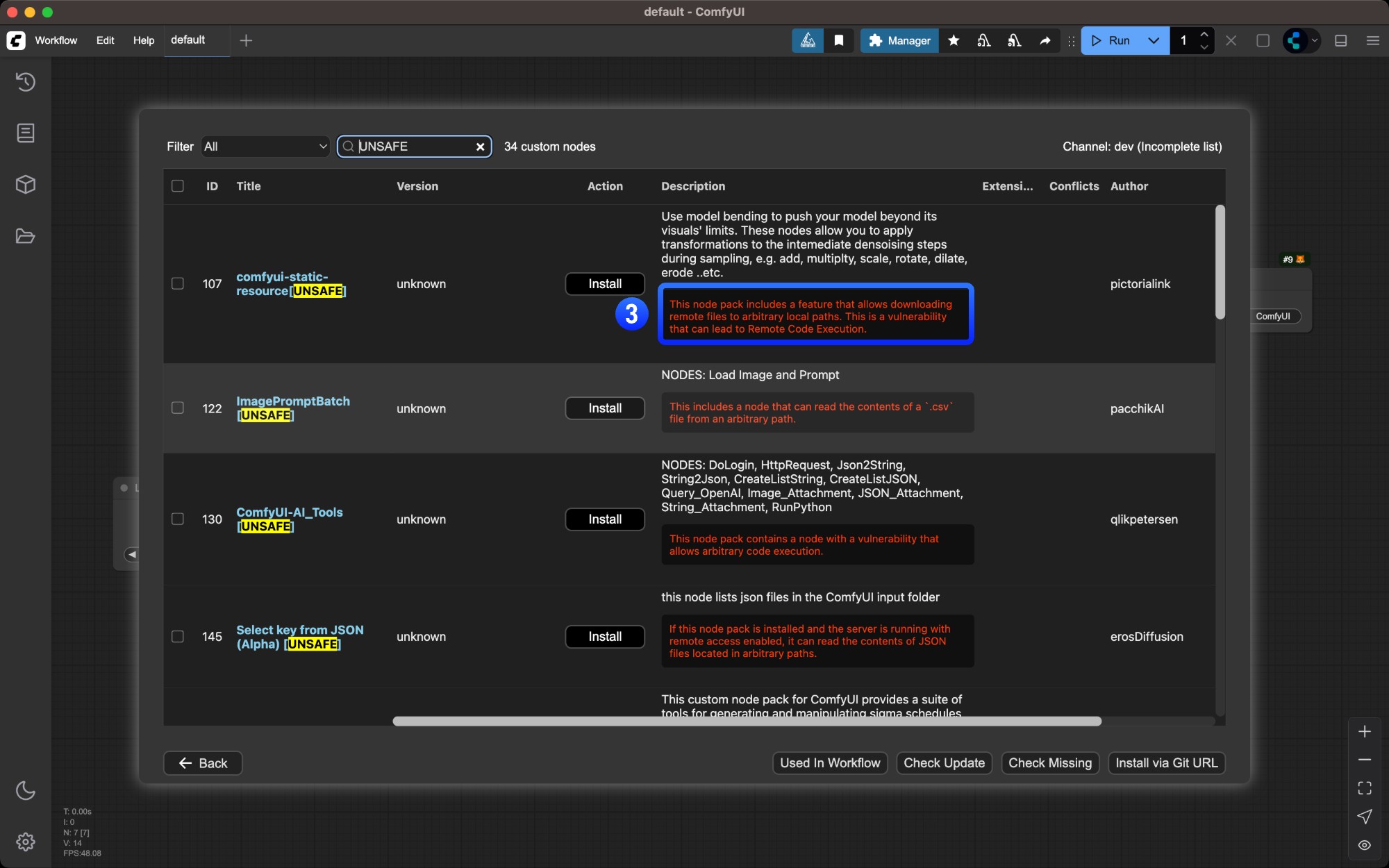
1. Nodes marked with `⚠️` may have dependency conflicts with other plugins
2. Author names marked with `✅` indicate their activity level on Github
3. Potential plugin risks are highlighted in red - ensure plugin safety before installing
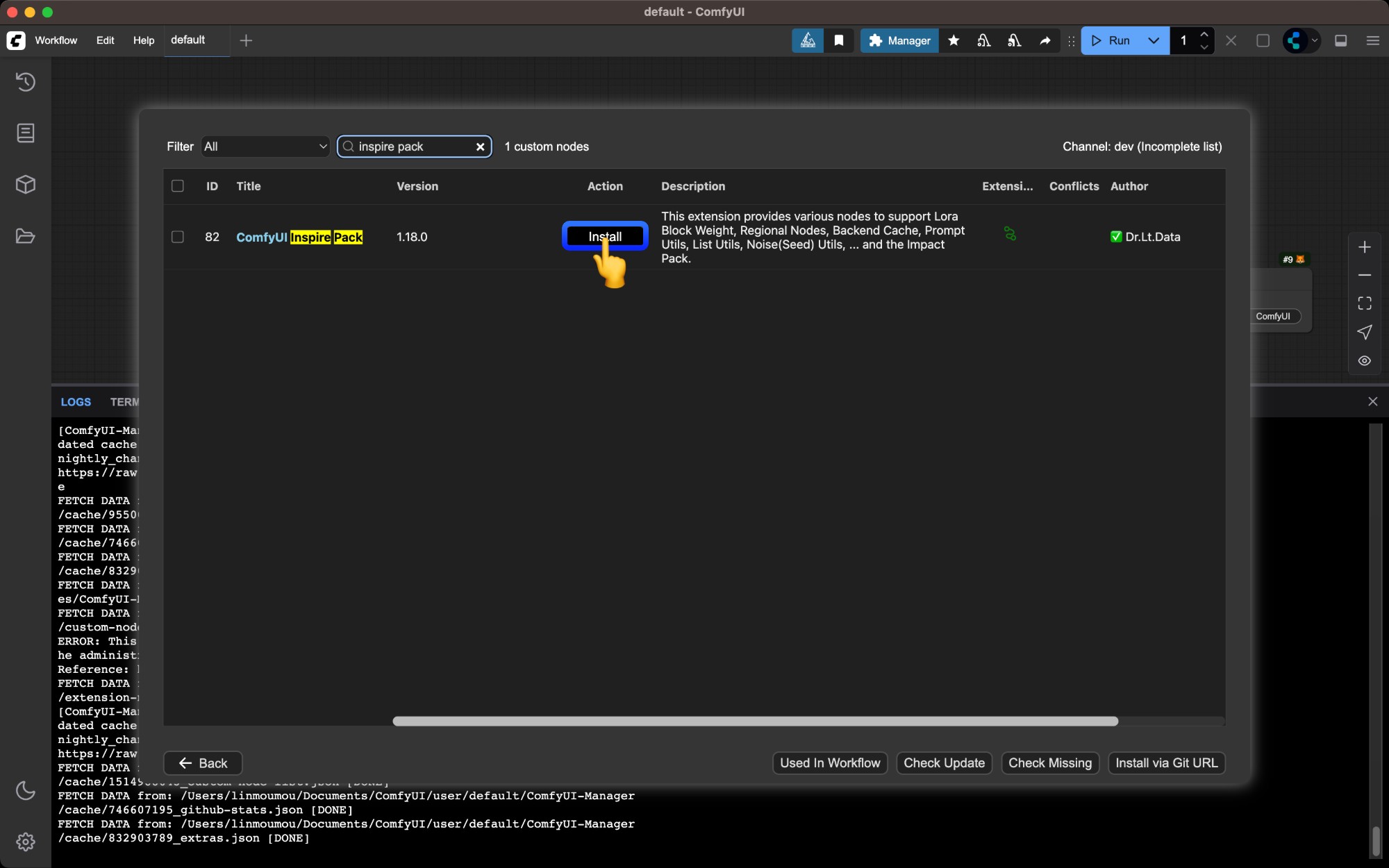
Find the node you want to install and click the `Install` button
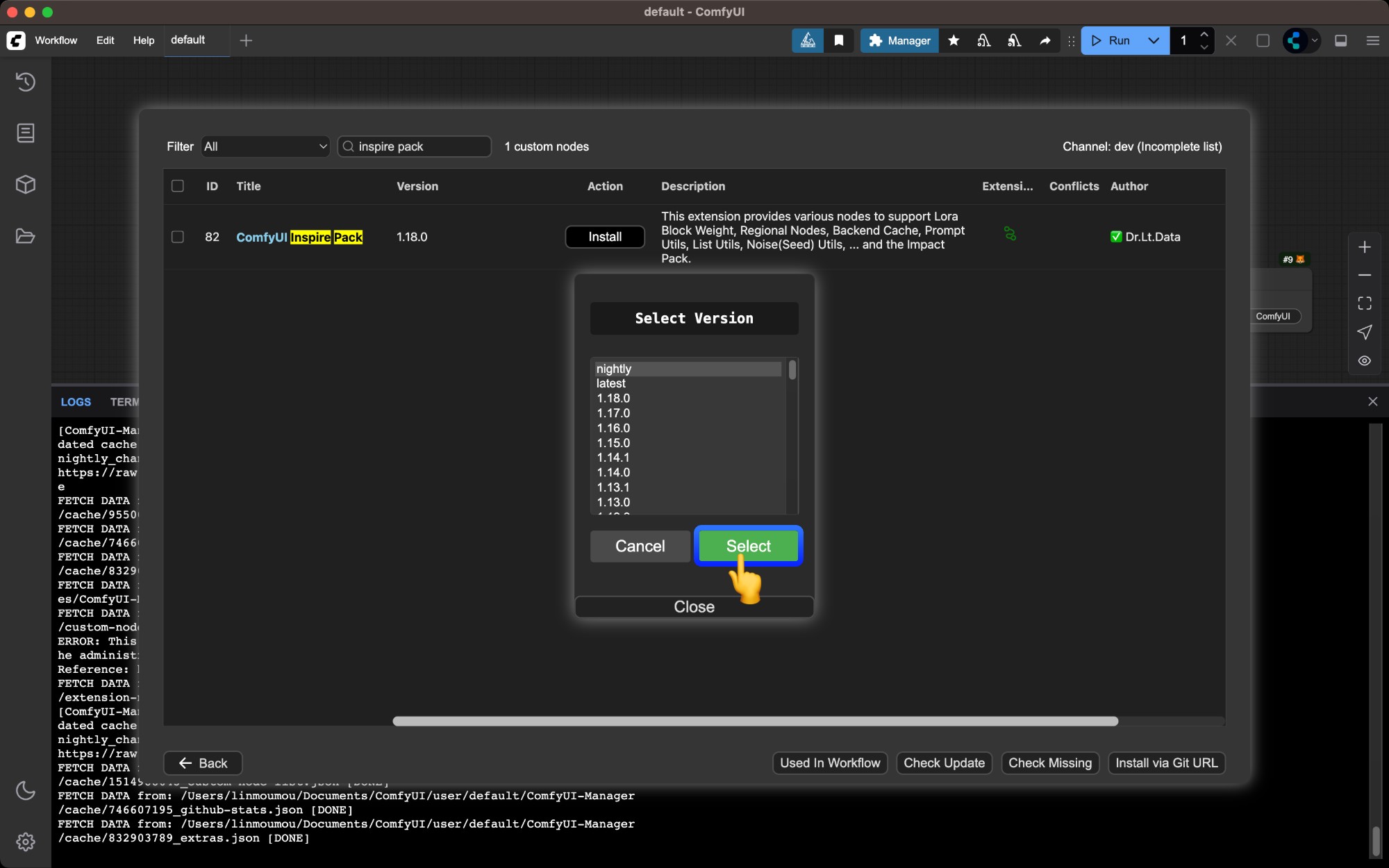
A popup will ask you to choose a version - `nightly` is the latest version, while `latest` is the most recent stable version. Choose based on your needs.
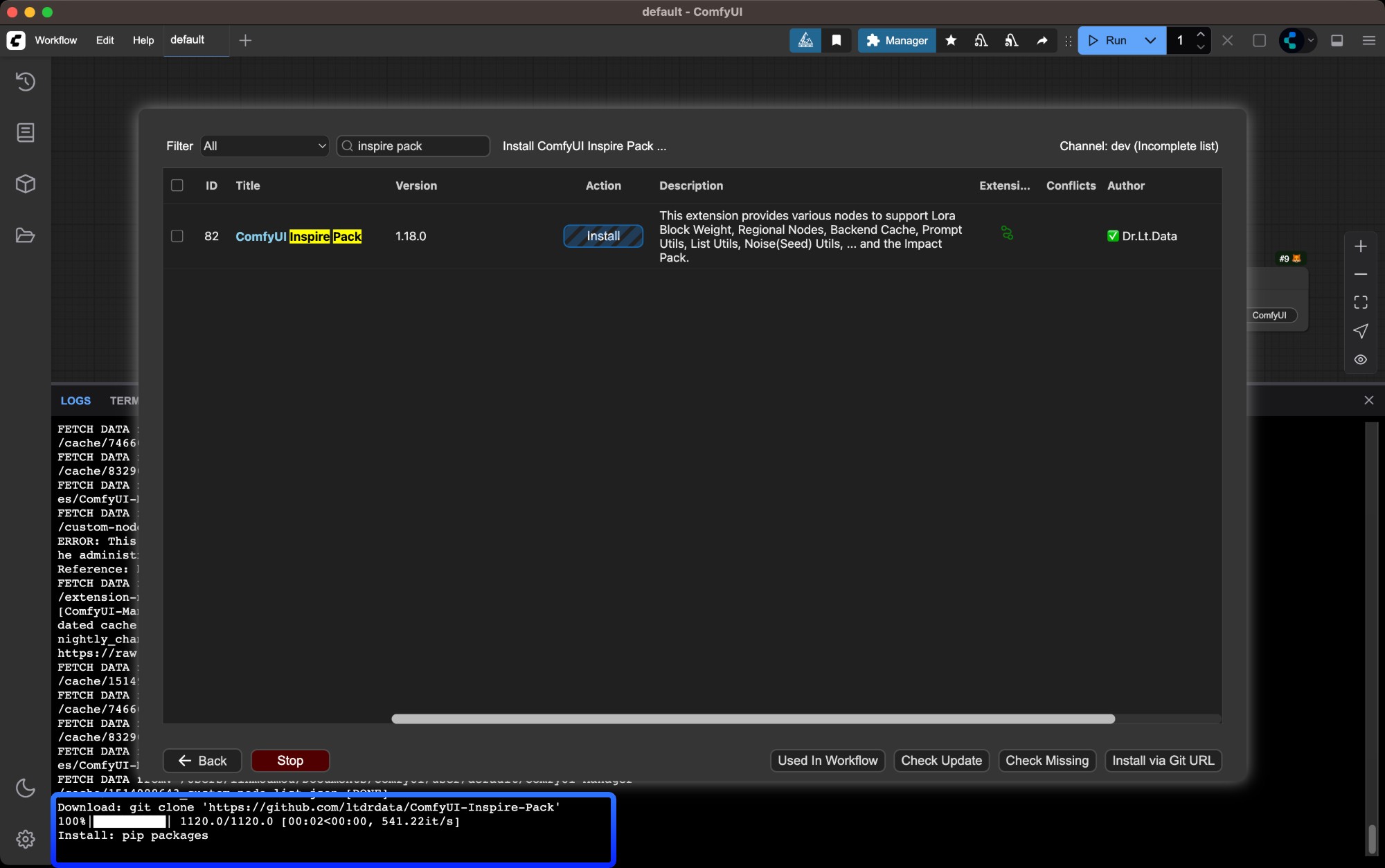
Manager will automatically install dependencies and prompt you to restart ComfyUI when complete
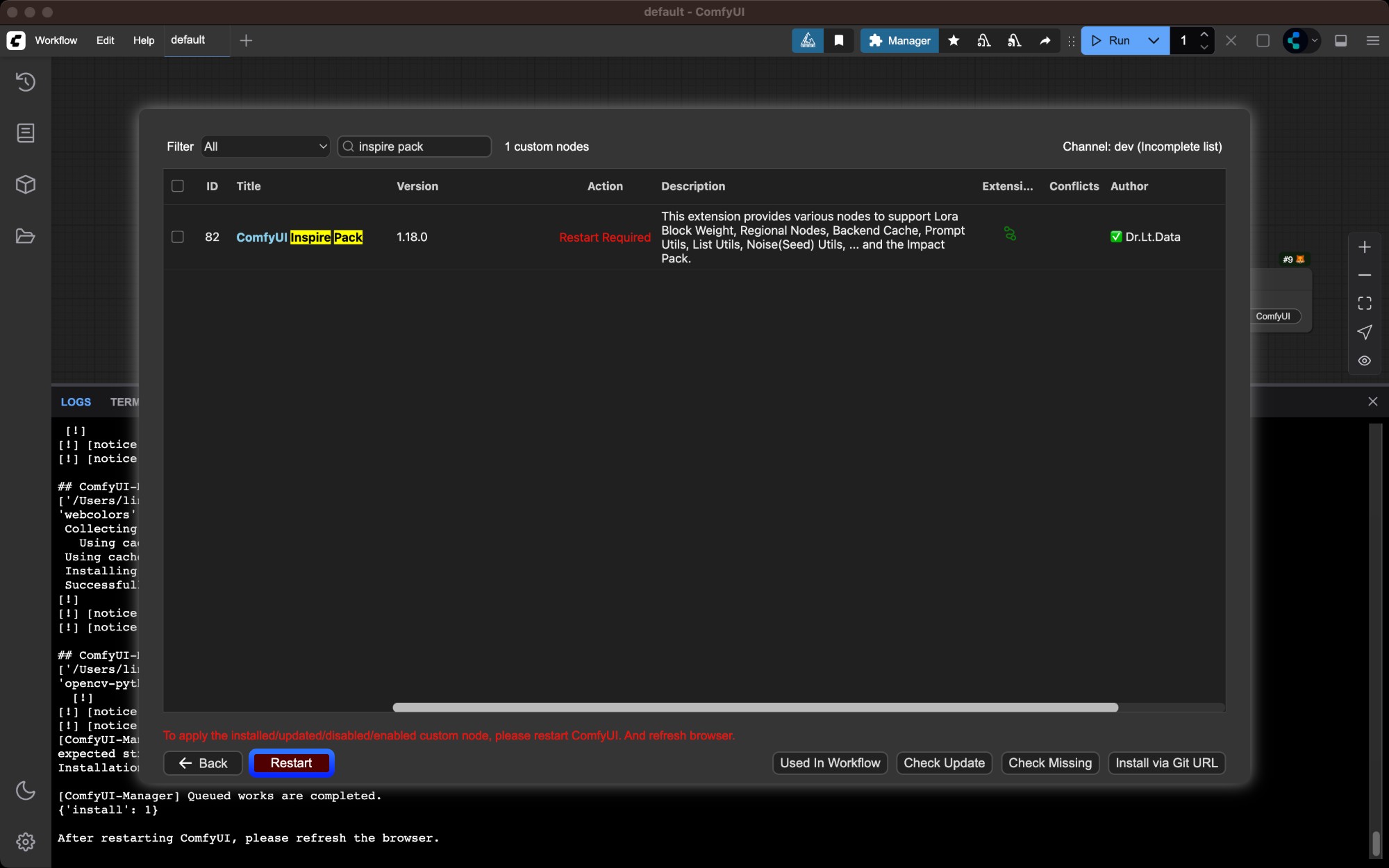
Check ComfyUI Manager after restart to confirm the plugin installed successfully and there are no `import failed` errors
## Method 2: Manual Installation Using Git
Suitable for new nodes not found in Manager or when specific versions are needed. Requires [Git](https://git-scm.com/) installed on your system.
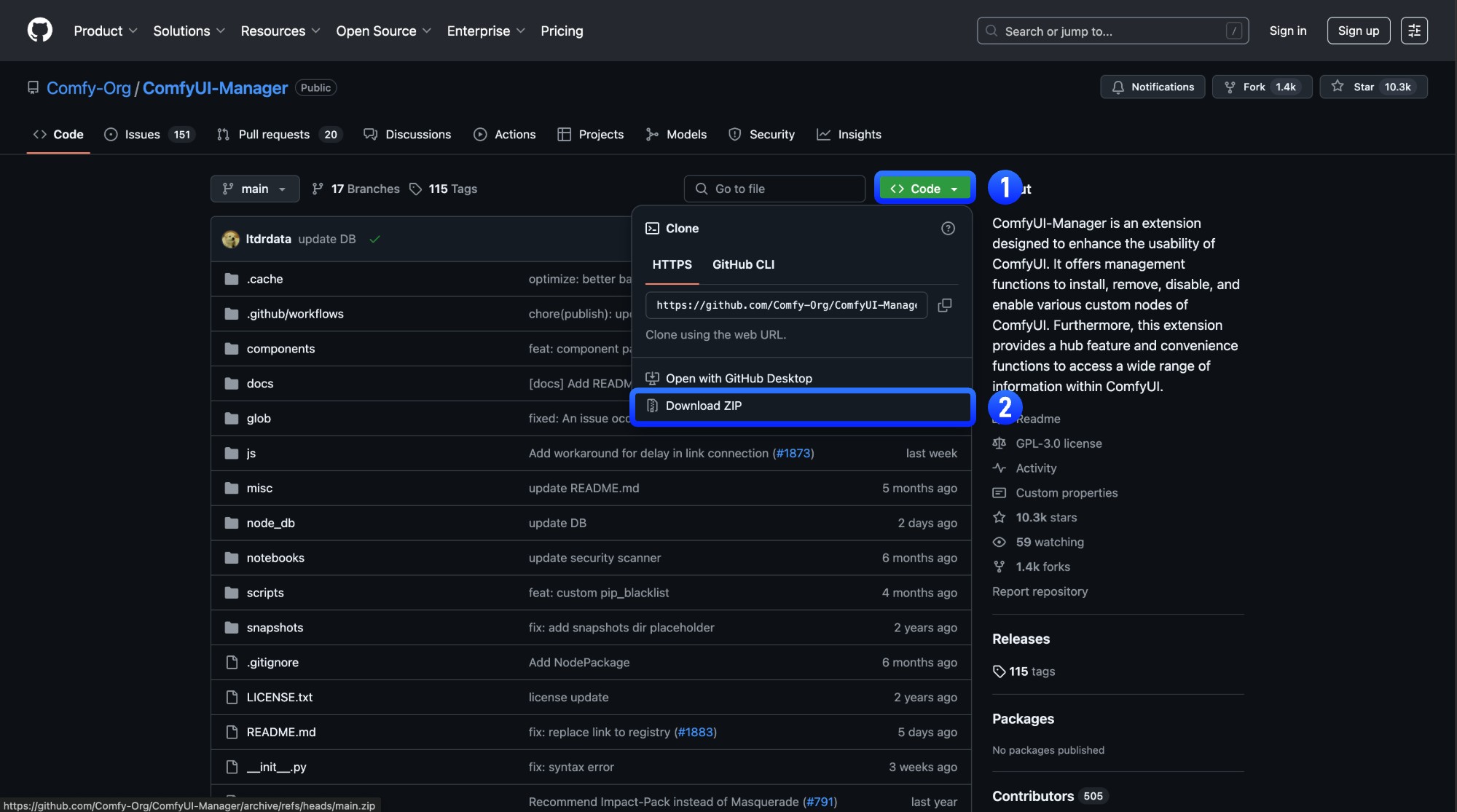
Click the "Code" button on GitHub and copy the HTTPS link
```bash
cd /path/to/ComfyUI/custom_nodes
```
```bash
git clone [repository URL]
```
Dependencies must be installed in your ComfyUI environment - be careful not to mix with your system environment to avoid contamination
For Windows portable version, install dependencies in the embedded Python environment
```bash
python_embeded\python.exe -m pip install -r ComfyUI\custom_nodes\[node directory]\requirements.txt
```
Install dependencies in your ComfyUI environment
```bash
cd [node directory]
pip install -r requirements.txt
```
Restart ComfyUI and refresh your browser. Check startup logs for any `import failed` errors
## Method 3: ZIP Download Installation
Suitable for users who cannot use Git or Manager
We don't recommend this installation method as it loses version control capabilities
Click `Code` → `Download ZIP` on the GitHub page
Extract the downloaded ZIP file
Copy the extracted folder to `ComfyUI/custom_nodes/` directory
Restart ComfyUI and refresh browser
Check ComfyUI Manager after restart to confirm the plugin installed successfully and there are no `import failed` errors
{/* ## Troubleshooting
[To Be Updated] */}