> ## Documentation Index
> Fetch the complete documentation index at: https://dripart-train-lora-docs.mintlify.site/llms.txt
> Use this file to discover all available pages before exploring further.

# Cosmos Predict2 Video2World  ComfyUI Official Example

> This guide demonstrates how to complete Cosmos-Predict2 Video2World workflows in ComfyUI

Cosmos-Predict2 is NVIDIA's next-generation physical world foundation model, specifically designed for high-quality visual generation and prediction tasks in physical AI scenarios.
The model features exceptional physical accuracy, environmental interactivity, and detail reproduction capabilities, enabling realistic simulation of complex physical phenomena and dynamic scenes.

Cosmos-Predict2 supports various generation methods including Text-to-Image (Text2Image) and Video-to-World (Video2World),
and is widely used in industrial simulation, autonomous driving, urban planning, scientific research, and other fields.
It serves as a crucial foundational tool for promoting deep integration of intelligent vision and the physical world.

GitHub:[Cosmos-predict2](https://github.com/nvidia-cosmos/cosmos-predict2)
huggingface: [Cosmos-Predict2](https://huggingface.co/collections/nvidia/cosmos-predict2-68028efc052239369a0f2959)

This guide will walk you through completing **Video2World** generation in ComfyUI.

For the text-to-image section, please refer to the following part:

<Card title="Cosmos Predict2 Text to Image" icon="book" href="/tutorials/image/cosmos/cosmos-predict2-t2i">
  Using Cosmos-Predict2 for text-to-image generation
</Card>

<Tip>
  If you find missing nodes when loading the workflow file below, it may be due to the following situations:

  1. You are not using the latest Development (Nightly) version of ComfyUI.
  2. You are using the Stable (Release) version or Desktop version of ComfyUI (which does not include the latest feature updates).
  3. You are using the latest Commit version of ComfyUI, but some nodes failed to import during startup.

  Please make sure you have successfully updated ComfyUI to the latest Development (Nightly) version. See: [How to Update ComfyUI](/installation/update_comfyui) section to learn how to update ComfyUI.
</Tip>

## Cosmos Predict2 Video2World Workflow

### 1. Workflow File

Please download the video below and drag it into ComfyUI to load the workflow. The workflow already has embedded model download links.

<video controls className="w-full aspect-video" src="https://raw.githubusercontent.com/Comfy-Org/example_workflows/refs/heads/main/video/cosmos/predict2/cosmos_predict2_2B_video2world_480p_16fps.mp4" />

<a className="prose" target="_blank" href="https://raw.githubusercontent.com/Comfy-Org/example_workflows/refs/heads/main/video/cosmos/predict2/cosmos_predict2_2B_video2world_480p_16fps.json" style={{ display: 'inline-block', backgroundColor: '#0078D6', color: '#ffffff', padding: '10px 20px', borderRadius: '8px', borderColor: "transparent", textDecoration: 'none', fontWeight: 'bold'}}>
  <p className="prose" style={{ margin: 0, fontSize: "0.8rem" }}>Download Json Format Workflow File</p>
</a>

Please download the following image as input:

![Input Image](https://raw.githubusercontent.com/Comfy-Org/example_workflows/refs/heads/main/video/cosmos/predict2/input.png)

### 2. Manual Model Installation

If the model download wasn't successful, you can try to download them manually by yourself in this section.

**Diffusion model**

* [cosmos\_predict2\_2B\_video2world\_480p\_16fps.safetensors](https://huggingface.co/Comfy-Org/Cosmos_Predict2_repackaged/resolve/main/cosmos_predict2_2B_video2world_480p_16fps.safetensors)

For other weights, please visit [Cosmos\_Predict2\_repackaged](https://huggingface.co/Comfy-Org/Cosmos_Predict2_repackaged) to download

**Text encoder**

[oldt5\_xxl\_fp8\_e4m3fn\_scaled.safetensors](https://huggingface.co/comfyanonymous/cosmos_1.0_text_encoder_and_VAE_ComfyUI/resolve/main/text_encoders/oldt5_xxl_fp8_e4m3fn_scaled.safetensors)

**VAE**

[wan\_2.1\_vae.safetensors](https://huggingface.co/Comfy-Org/Wan_2.1_ComfyUI_repackaged/resolve/main/split_files/vae/wan_2.1_vae.safetensors)

File Storage Location

```
📂 ComfyUI/
├──📂 models/
│   ├── 📂 diffusion_models/
│   │   └─── cosmos_predict2_2B_video2world_480p_16fps.safetensors
│   ├── 📂 text_encoders/
│   │   └─── oldt5_xxl_fp8_e4m3fn_scaled.safetensors
│   └── 📂 vae/
│       └──  wan_2.1_vae.safetensors
```

### 3. Complete Workflow  Step by Step
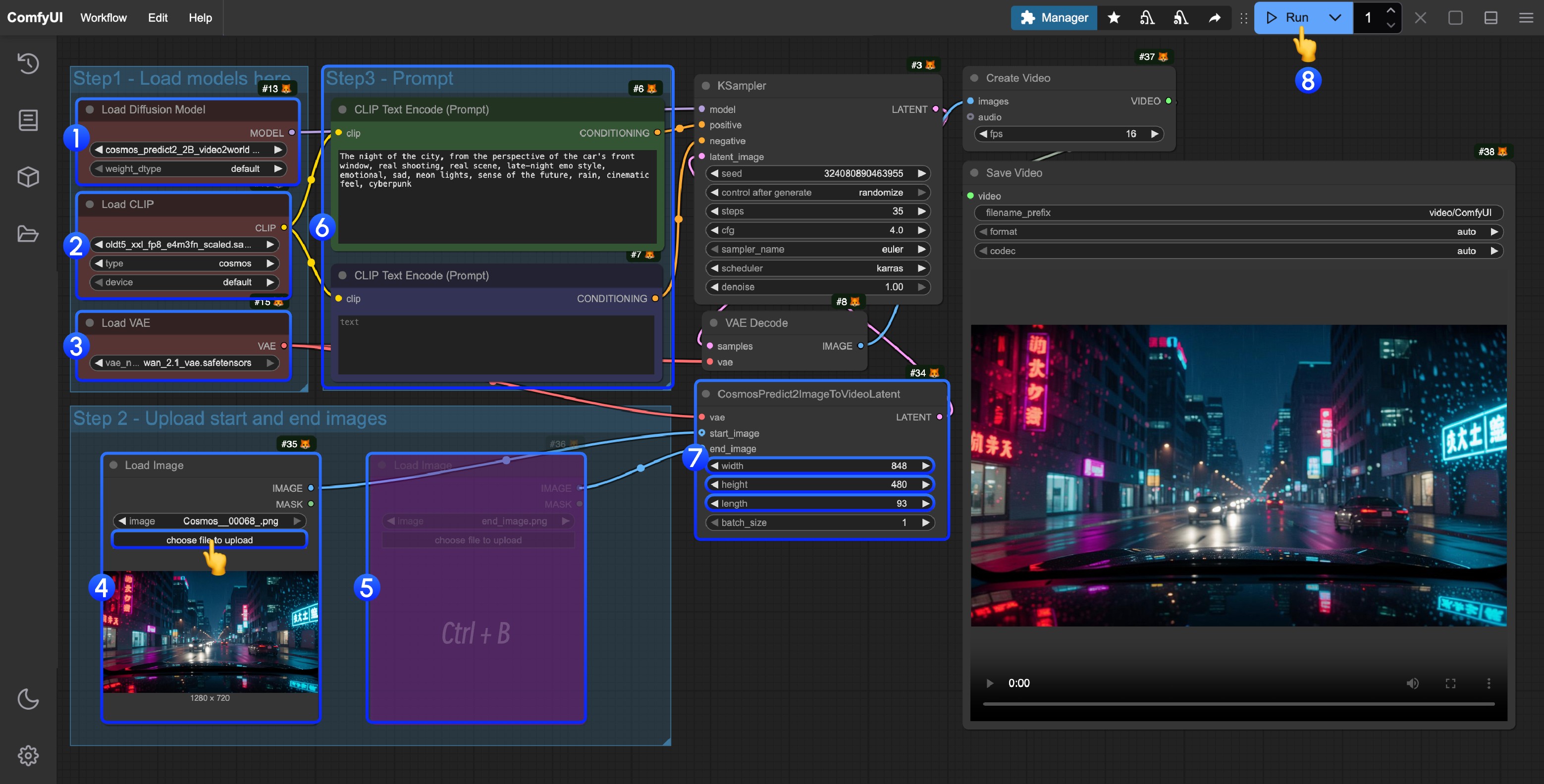
![Workflow Step Guide](https://mintlify.s3.us-west-1.amazonaws.com/dripart-train-lora-docs/images/tutorial/video/cosmos/cosmos_predict2_2B_video2world_480p_16fps_step_guide.jpg)

Please follow the steps in the image to run the workflow:

1. Ensure the `Load Diffusion Model` node has loaded `cosmos_predict2_2B_video2world_480p_16fps.safetensors`
2. Ensure the `Load CLIP` node has loaded `oldt5_xxl_fp8_e4m3fn_scaled.safetensors`
3. Ensure the `Load VAE` node has loaded `wan_2.1_vae.safetensors`
4. Upload the provided input image in the `Load Image` node
5. (Optional) If you need first and last frame control, use the shortcut `Ctrl(cmd) + B` to enable last frame input
6. (Optional) You can modify the prompts in the `ClipTextEncode` node
7. (Optional) Modify the size and frame count in the `CosmosPredict2ImageToVideoLatent` node
8. Click the `Run` button or use the shortcut `Ctrl(cmd) + Enter` to run the workflow
9. Once generation is complete, the video will automatically save to the `ComfyUI/output/` directory, you can also preview it in the `save video` node
